The first step in delivering additional applications that are outside of the base image to select users inside your environment is to package the application by running its installer and capturing any initial settings.
Important: After capturing every DIA package, it is best practice to revert the virtual machine to the initial snapshot. This ensures that any testing is done with a clean system and that further packages are not affected by leftover settings and software from previous packages.
To create a new application package, complete the following steps:
- In the FlexApp Packaging Console, click the Create button.
- On the Create a Package screen, enter a Package Name.
- In the Installer Location field, enter the full path of the application’s setup program. Any additional parameters for the installation program can be entered on the blank line immediately below the Installer Location field.
- In the Package Type field, select the type of disk on which the package will be created: FlexDisk, Cloud, VHDX, or Local Disk.
-
Note: One of the most powerful features of ProfileUnity is the filters that can be leveraged during the assignment of FlexApp Layers. Note that filters apply only to VHDX, cloud, or local disk FlexApp packages/layers. VMDK-based FlexApp layers currently support user, group, and basic machine assignments. The primary reason for the difference in VHDX vs. VDMK package types centers on architecture. The ProfileUnity Configuration INI-based workflow does not apply to the VMDK-based assignments controlled by vCenter.
- The fields that appear below the Package Type field change depending on which package type you selected:
- If you chose FlexDisk, then choose the datastore to hold the FlexApp package from the FlexDisk Datastore field.
- If you chose VHDX, then enter the path in the VHDX Location field that appears.
- If you chose Local Disk, then enter the path in the Local Installation Location field.
- If you chose Cloud, then do the following:
- Select the proper Cloud Credentials which are configured in the ProfileUnity Management Console Administration > Cloud Storage section.
- Select the Cloud Storage Location that pairs with your selected Cloud Credentials. Valid cloud storage path prefixes are as follows:
S3://for Amazon S3AZ://for Azure BlobGS://for Google Cloud Storage
- If you chose to place the package on a virtual disk (VHDX or FlexDisk VMDK), configure any remaining options such as virtual disk size, compression and whether the virtual disk is expandable or not.
- Click Create to launch the application installer and follow any instructions in the application’s installer. While the installer is running, FlexApp is recording the entire installation process and saving it to the package.
- After the application installation is complete, you can reboot the application by clicking the Reboot button. After rebooting, the FlexApp Packaging Console automatically re-opens, allowing you to complete the packaging process.
- Click Finish to stop the capture of the entire installation sequence.
- After the process finishes, click the Save button. If the installation failed or you do not want to keep the newly created package, click the Delete button.
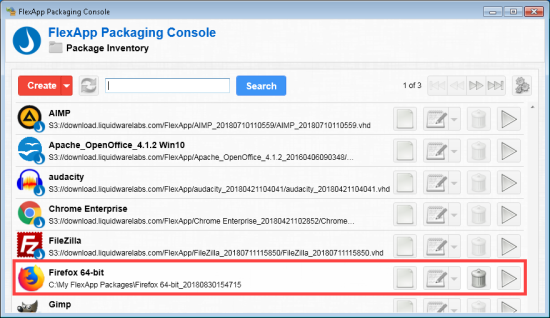
- The application package then appears in the FlexApp Package Inventory list.
-