Follow these directions to use a VMDK at the OS level for assigning applications at computer startup with FlexApp. These instructions are based on starting and using ProfileUnity as a Service, which is needed for setting user or group assignments later in the procedure. FlexDisk also offers computer-level assignment of VMDK-based FlexApp packages that can be used without ProfileUnity as a Service. If ProfileUnity as a Service is used, FlexApp packages are played back on service boot, making them available before the user logs in. If ProfileUnity as a Service is not used, playback of the FlexApp packages occurs at user login. However, no user assignments are needed in this case, which might be valuable in a lab scenario where many users have access to log in to a finite pool of computers.
- Log in to the ProfileUnity Management Console.
- Hover over your username in the top right corner of the screen.
- In the drop-down menu that appears, click the Administration option.
-
Note: If you have not already done so, follow the directions provided earlier in the Setting Up ProfileUnity Clustering for FlexDisk section of this guide to configure FlexDisk for your vCenter.
- The Administration screen opens with the Settings tab displayed.
- Scroll down to the Client Settings section.
- In the ProfileDisk and FlexDisk VMDK Mode drop-down list, select the FlexDisk VMDK ProfileDisk And FlexApp option.
- In the Deployment Path field, enter your NETLOGON path.
- Click the Update button in the top right corner of the screen.
- Click the Download or Deploy Client Settings button to send a copy of the client configuration file to the specified location.
- On the screen that pops up, select the Platform for deployment.
- If you choose the Domain or Cloud option, this will place the client configuration file in the directory you specified for the Deployment Path.
- If you are not logged in as an Active Directory user, choose the Download option and manually place the client configuration file,
clientsettings.xml, in the Deployment Path.
- Click the Deploy button.
- Scroll down to the ProfileUnity Tools section and click Download or Deploy Client Tools to copy the ProfileUnity Client files to the NETLOGON share on your domain controller.
- Click the Configuration Management option in the left column.
- Click the Create button in the top right corner of the screen.
- In order for the FlexDisk Service to work, you must have at least one ProfileUnity Configuration File (INI) downloaded to your Deployment Path. In order to configure FlexDisk without other configuration settings, create a blank configuration file in the Configuration Wizard by choosing a Manual configuration with no other settings in it.
- Set up ProfileUnity to run at the system level. Start by opening Group Policy Management and creating a GPO on the computer OU where you want ProfileUnity to run on computer startup.
- Set up LwL.ProfileUnity.Client.Startup.exe to run on the computer startup by creating a computer startup script under windows settings scripts. The script name should be the full path to LwL.ProfileUnity.Client.Startup.exe from the Deployment path.
- Under Computer Configuration administrative templates, right-click and pick add/remove templates, then import the ProfileUnity ADM from the Deployment Path.
- While under Computer Configuration, go to Classic Administrative Templates > Liquidware Labs > ProfileUnity > Bit level of your desktops.
- Set your System INI path to a directory under your Deployment Path called
\Startup. \\dc.local\netlogon\ProfileUnity\Startup- Hover over your username in the top right corner of the Management Console screen.
- In the drop-down menu that appears, click the Administration option.
- The Administration screen opens with the Settings tab displayed.
- Scroll down to the ProfileUnity Tools section.
- In the Run Client Tools As Service field, enter a domain\username and password. The user you enter DOES NOT need to be an administrator, but does have to be a domain user account.
- Click the Update button in the top right corner of the screen.
- In the ProfileUnity Tools section, click the Download or Deploy Service Configuration button.
- The deployment path should be:
\\dc.local\netlogon\ProfileUnity - Using the FlexApp Packaging Console, create a package selecting “FlexDisk” as the Package Type and choose which FlexDisk datastore to which the package will be saved.
- In the ProfileUnity Management Console, instead of using the FlexApp Configuration Module click FlexDisk Management in the left column.
-
-
Note: Beginning with version 6.8.5, FlexDisk Management is hidden by default. If you do not see it in the left column, click your username in the top right corner of the screen and click the Administration option. In the Settings tab, scroll down to and click to open the Miscellaneous section. Deselect the Hide FlexDisk checkbox, then click Update in the top right corner of the screen. Lastly, refresh your screen and the FlexDisk Management option should appear in the left column.
-
- Click the FlexApp tab and then click the
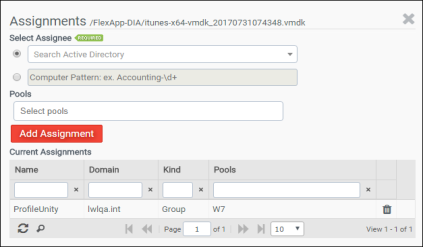
 (Assignments) icon to create an assignment for users or groups.
 - Select the user that was entered in for Step 22.
- If you have VMware Horizon and have added your Horizon credentials to the Administration > FlexDisk section, you can limit the application to the user, group, and/or the pool. Click the Add Assignment button to add it to the list of current assignments.
- When you have finished, click the X button.
-
- In the Management Console, build a configuration with apps that will be global to the computer, then place that INI into the following location:
\\dc.local\netlogon\ProfileUnity\Startup - Nothing should be in
\Startupbut an INI of things you want to run on computer startup. - Reboot or refresh all user desktops. If Microsoft® .NET Framework is not installed in the base operating system on a particular desktop, ProfileUnity will install it after the desktop restarts. The installation of .NET will increase the time it takes before the desktop is available again.


