
The macOS agent installer supports a broad range of macOS versions. In addition to performance and process metrics, CommandCTRL now collects network widgets and Wi-Fi statistics for Mac endpoints and displays them on the machine dashboard.
Installing the Agent
This is for installing the agent on a single or multiple Mac machines.
-
Download the most recent mac agent .DMG file from the CommandCTRL console.
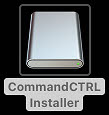
The CommandCTRL.pkg appears on the desktop.
-
Launch the CommandCTRL.pkg.
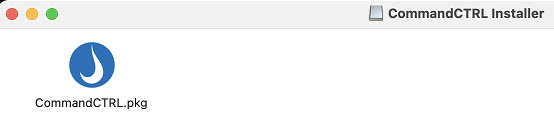
The CommandCTRL installer Introduction dialog box appears.
-
Click Continue.
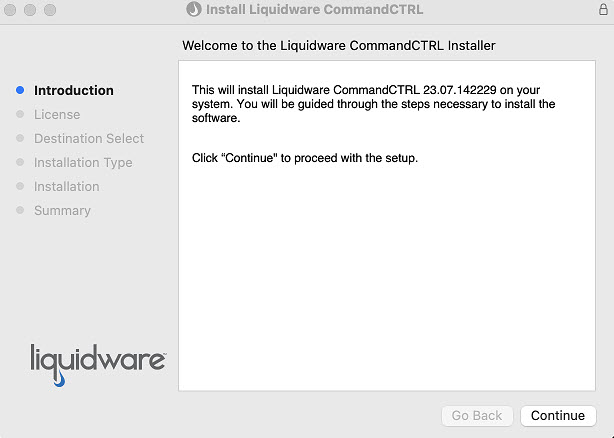
The CommandCTRL installer License agreement dialog box appears.
-
Click Continue.
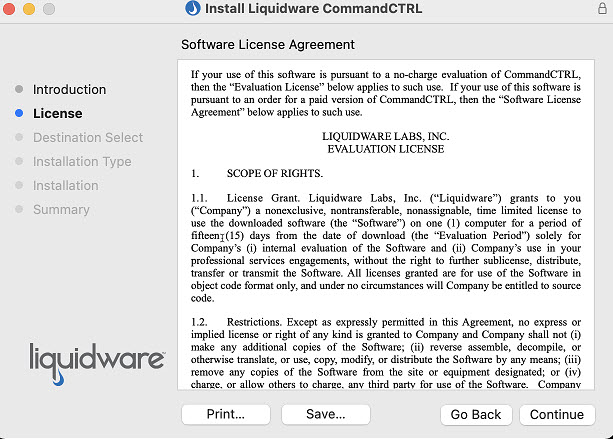
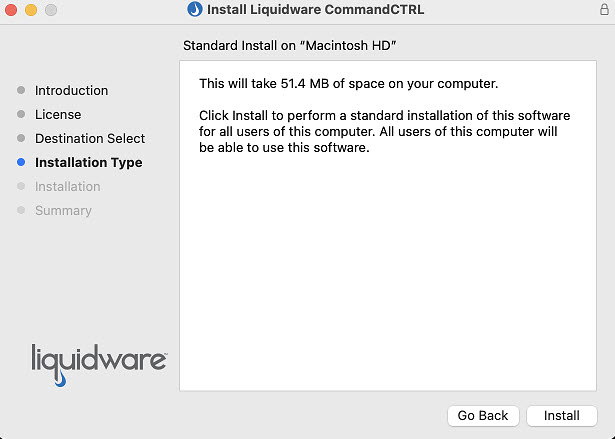
The CommandCTRL installer Installation Type dialog box appears.
-
Click Install.
-
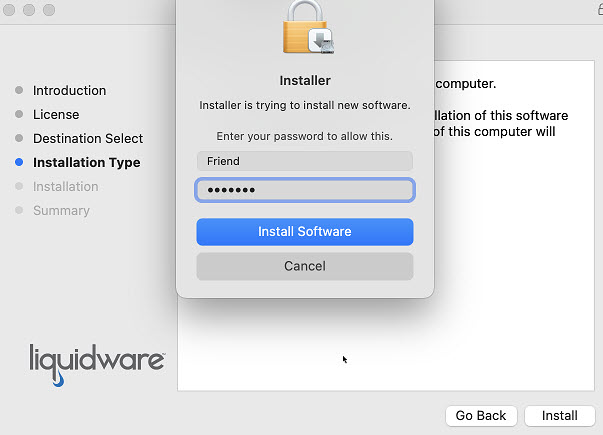
Enter the password you use to log into that machine.
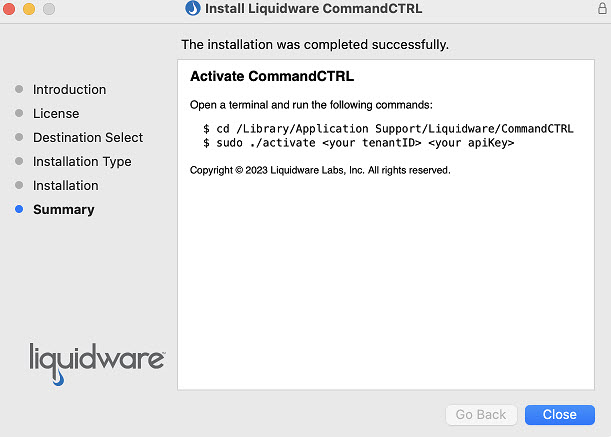
The CommandCTRL installer Summary dialog box appears.
-
Click Close.
-
Open a terminal window.
-
Change the CommandCTRL install path as shown in the first command line of the previous screen to where CommandCTRL resides in your environment.
-
Press the Enter key.
-
The second command line in the previous screen displays <your tenantID> and <your apiKey>. Install the CommandCTRL service as Root and replace <your tenantID> (e.g., 6274957583) and <your apiKey> (e.g., AWBCT2CUSR79AB7N8L9J) with your tenant ID and api key.

-
Press the Enter key.
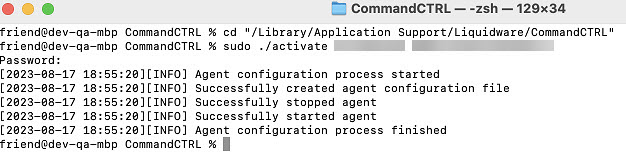
The command is executed and the following screen shows the agent was successfully installed.
Agent Updates
To enable or disable automatic updates, complete the following steps:
-
In the side navigation panel, go to Settings > Site.
-
In the Agent Settings section, the Enable/Disable switch located to the far right. The default is set to enable. It is recommended to accept automatic updates; however, this switch allows users the ability to control when the agent is updated.
-
Either leave the switch enabled or slide the switch to the left to disable the agent from automatically updating.
Updating the Agent
This is for updating the agent on a single or multiple Mac machines.
Agent Updates
To enable or disable automatic updates, complete the following steps:
-
In the side navigation panel, go to Settings > Site.
-
In the Agent Settings section, the Enable/Disable switch located to the far right. The default is set to enable. It is recommended to accept automatic updates; however, this switch allows users the ability to control when the agent is updated.
-
Either leave the switch enabled or slide the switch to the left to disable the agent from automatically updating.
Uninstalling the Agent
CommandCTRL collects historical metrics for each machine. After the CommandCTRL Agent has been uninstalled from a machine, no additional metrics will be collected.
Uninstall Using the Command Line Method
This is for uninstalling the agent on a single or multiple Mac machines using a command line method.
-
Open a terminal window.
-
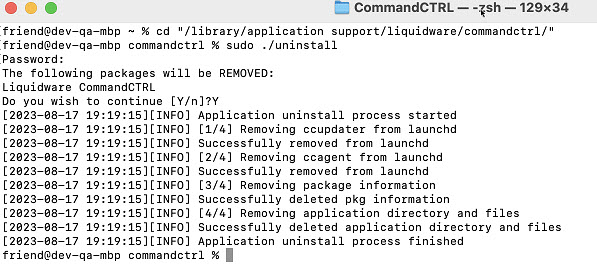
Navigate to the path where CommandCTRL is currently installed in your environment, as shown in the first command line of the following screen.
-
Press the Enter key.
-
Type the uninstall command as Root, as shown in the second command line of the following screen.
-
Press the Enter key.
-
Type Y (yes) to accept continuing to remove the agent.
The command is executed and the following screen shows the agent was successfully uninstalled.
Uninstall Using the CommandCTRL Method
To use CommandCTRL to remove an agent from a single machine, follow the same procedure in Uninstall the CommandCTRL Agent on Multiple Machines.