ProfileUnity with FlexApp provides support for using Common Access Card (CAC) authentication when logging in to the ProfileUnity Management Console. CAC authentication provides a higher level of security by requiring a two-factor authentication process involving a smart card and a PIN.
ProfileUnity’s CAC Secure Mode is compatible with Microsoft Windows Server 2016, 2019, and 2022. The server should already have the CAC software installed and working.
To configure CAC Secure Mode, complete the following steps:
- Install the ProfileUnity Management Console on Windows Server if not previously done.
- Log in to the ProfileUnity Management Console.
- Hover over your username in the top right corner of the screen.
- In the drop-down menu that appears, click Administration.
- The Administration screen opens with the Settings tab displayed.
- Click the Users And Roles tab in the top right corner of the screen.
- In the User Management field, click the name of a user that is linked to Active Directory. If one does not already exist, click the Add User button and create one.
- In the Role Management field, enter the Active Directory username and password to serve as the Service Account for Deployment.
- Click the Add/Update button.
- In the top right corner of the Administration screen, click the Settings tab.
- Scroll down to the Miscellaneous section.
- Select the Enable CAC Secure Mode checkbox.
- Click the Select Certificate Authorities from Local Machine Root field, then pick one or more certificate authorities to use from the drop-down list that appears.
- Select the Enable CAC Certificate Revocation List Cache checkbox.
- Select the Enable Secure Banner Text checkbox.
- Review the Secure Banner Text and the Secure Login Banner Text and make any necessary edits.
- Click the Update button in the top right corner of the screen.
- Restart the ProfileUnity service.
Troubleshooting Steps
If you see a 403 Forbidden error message, you are not authenticated with a CAC card. To resolve this issue, complete the following steps:
- Close the current browser and reopen.
- Connect to the ProfileUnity console URL.
- Select the appropriate certificate.
- Enter the PIN when prompted.
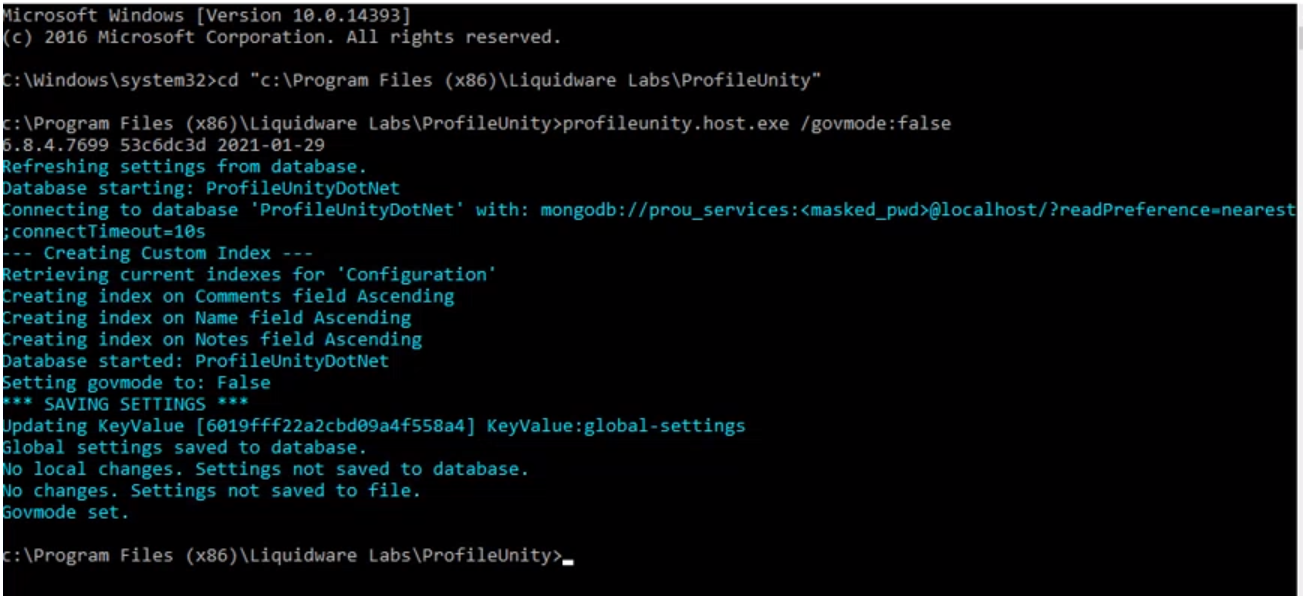
If these steps fail, you might need to disable CAC authentication. To turn off CAC mode in the user interface, stop the ProfileUnity Console service, and then run the following command in an Administrator Command Prompt:
C:\Program Files (x86)\Liquidware Labs\ProfileUnity\profileunity.host.exe /govmode:falseIf the command executes correctly, the following code should appear: