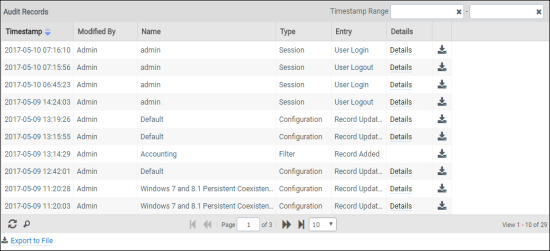
When Auditing is configured in the Administration Settings tab, ProfileUnity keeps track of changes made in your environment. These include logins to the Management Console; creation of new configurations; and edits made to filter, portability, or configuration rules. Audit Management shows when the changes were made and who made the modifications.
To get to these settings, complete the following steps:
- Log in to the ProfileUnity Management Console.
- Hover over your username in the top right corner of the screen.
- In the drop-down menu that appears, click the Administration option.
- The Administration screen opens with the Settings tab displayed.
- Scroll down to the Audit section.
- In the Enable Audit field, select the Track Changes to Configurations, Filters, Portability Rulesets And Other Items checkbox. This allows ProfileUnity to keep an audit trail of revisions to your database.
- In the How Many Days of Records to Keep field, enter the number of days to retain audit information. The default is 120 days.
Note: New installations of ProfileUnity have auditing enabled by default. However, upgraded versions have the new auditing feature disabled by default. Be sure to enable auditing on upgraded versions.
To view the Audit Trail, complete the following steps:
- Hover over your username in the top right corner of the screen.
- In the drop-down menu that appears, click Administration.
- The Administration screen opens with the Settings tab displayed.
- Click the Audit tab in the top right corner of the screen.
- The Audit Records list appears.
-