If you chose to automate your environment setup by using the Guided Configuration Wizard, you had the option of installing the ProfileUnity Client files to the deployment path you provided. However, if you chose to manually set up your environment, you will need to locate, download, and extract the Client files to a subdirectory for ProfileUnity on the NETLOGON share of your domain controller. If you are using cloud storage, you will need to follow the manual instructions in the next section to set up your computer startup script for use with cloud storage.
To access the ProfileUnity Tools section of the Administration screen, complete the following steps:
- Log in to the ProfileUnity Management Console.
- Hover over your username in the top right corner of the screen.
- In the drop-down menu that appears, click the Administration option.
- Scroll down to the ProfileUnity Tools section.
-
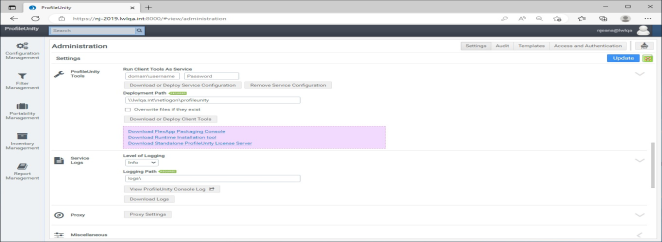
- ProfileUnity can deploy the Client Tools for you from the ProfileUnity Tools section.
- In the Deployment Path field, enter a UNC path to where the Client Tools and configuration files should be copied. In most cases, this will be a ProfileUnity subdirectory under the NETLOGON share on your domain controller. For example:
\\CompanyDomain\netlogon\ProfileUnity- To save these deployment settings, click the Update button in the top right corner of the screen.
- Click the Download or Deploy Client Tools button in the ProfileUnity Tools section.
- Select your Platform option. If you are logged into the ProfileUnity Management Console with a domain account that has write permissions to the deployment path, select Domain; if not, select Download.
- Click the Deploy button.
- If you selected Domain in the previous step, all the Client Tools files are copied to the directory you specified for the deployment path.
- If you selected Download in the previous step, you must extract the downloaded ZIP file contents to your deployment path manually.
If you are not using the NETLOGON share on your domain controller, refer to Appendix A, Not Using NETLOGON? for more information.


