The Guided Configuration Wizard makes use of configuration templates to jump start the configuration process. The standard templates provided by Liquidware include about 85% of the Windows settings a user would need right out of the box. While ProfileUnity comes with several different useful templates, the Template Administration screen allows console administrators to create additional configuration templates or manage the existing templates they have. Configuration Templates can help administrators build configurations for their environment faster than creating each configuration module rule individually, saving valuable time. Instead of creating a new configuration from scratch, the administrator can choose a template as a basis for a new configuration while running the Guided Configuration Wizard. If the template has the majority of the required settings already configured, then the administrator only has to make minimal changes to create a new configuration that is specific to the enterprise environment.
To manage your configuration templates, complete the following steps:
- Hover over your username in the top right corner of the Management Console screen.
- In the drop-down menu that appears, click the Administration option.
- The Administration screen opens with the Settings tab displayed.
- Click the Templates tab in the top right corner of the screen.
-
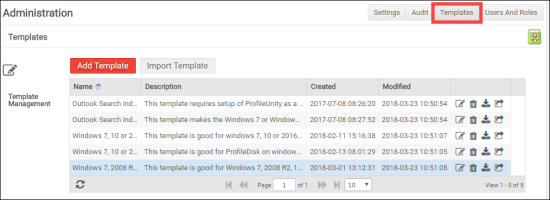
- The Template list that appears contains all of your existing configuration templates including the standard templates that come with ProfileUnity.
Importing Configuration Templates
If you have received a template from a partner or been working on perfecting a template with an outside resource, you can import it into the Management Console so that it is available to you the next time you run the Guided Configuration Wizard to create a new configuration.
To import a configuration template, complete the following steps:
- If it is not already displayed, click the Templates tab on the Administration screen.
- Click the Import Template button.
- Navigate to and select the JavaScript Object Notation (JSON) file that you want to use as a template.
- The configuration template is then added to the list of templates on the Templates tab.
Creating Configuration Templates
Any of the configurations you create on the Configuration Management screen can be saved as templates, which can then be used over and over again by the Guided Configuration Wizard.
To create a configuration template, complete the following steps:
- On the Configuration Management screen within ProfileUnity, create or modify a configuration, and then save it.
- Hover over your username in the top right corner of the screen.
- In the drop-down menu that appears, click the Administration option.
- The Administration screen opens with the Settings tab displayed.
- Click the Templates tab in the top right corner of the screen.
- On the Template Management screen that appears, click the Add Template button.
- The Template Setup screen opens with the General tab displayed.
- In the Configuration to Use as Template field, select the configuration that you created or modified in Step 1.
- In the Template Name field, enter a name for the template you are creating.
- (Optional) Enter a description of the template in the Template Description field. Although you can create the template without completing this field, the information in it might be useful to users who are setting up new configurations based on this template.
- The Template Variables field displays variables that are found within the selected Configuration. Enter a name for each variable and, optionally, a description that will help users understand what the variable is meant for.
- Good Examples
#NetworkFolder##ProfileCleanupFilter#- Bad Examples
#NetworkFolder(missing trailing #)NetworkFolder#(missing initial #)#Network Folder#(do not use spaces between #)- Click the GPO tab.
- On the GPO screen, do one of the following:
- Leave the Deploy GPO checkbox unselected and jump to Step 12 below.
- Check the Deploy GPO checkbox to instruct the template wizard to deploy a GPO. Note that the user creating the configuration must be part of the Active Directory domain.
- In the GOP Name field, enter the name you want to use for the GPO. ProfileUnity will assign a UUID to the end of the GPO to ensure uniqueness.
- In the Startup Script Name field, enter the path to the startup script.
- In the Startup Script Parameter field, add any parameters you want to pass to the startup script.
- In the Logoff Script Name field, enter the path to the logoff script.
- In the Logoff Script Parameter field, add any parameters you want to pass to the logoff script.
- In the INI Path field, enter the location of the INI path file.
- (Optional) Select the Configure user Group Policy loopback processing mode checkbox if you want to enable the Group Policy loopback policy when the GPO is deployed.
- Click the Miscellaneous tab.
- Select the Enable Cloud Storage checkbox to instruct the template wizard to make use of cloud storage.
- Select the Deploy ProfileDisk checkbox to instruct the template wizard to deploy a ProfileDisk configuration.
- Select the Multi-session ProfileDisk checkbox to instruct the template wizard to enable a configuration with Multi-session ProfileDisk. With Multi-session ProfileDisk, a user can be logged into multiple sessions at the same time and have the same experience across sessions. However, it will be "last write wins" down to the portability rule when using the built-in templates. Without portability, "last write wins" is for the entire ProfileDisk.
-
Note: Only VHDX ProfileDisks are supported for Multi-session ProfileDisk.
- In the Virtual Disk Path field, enter the location of your virtual disk.
- In the Size in GB field, enter the maximum size of the virtual disk in gigabytes.
- Select the Enable Compression checkbox to allow space savings.
- In the Disk Type drop-down list, choose whether the disk will be Expandable or Fixed in size.
- In the Deployment Path field, enter the deployment location where the ProfileDisk configuration will be stored on your NETLOGON share.
- Click the Save button to finish setting up the template.
Note: Variables are marked in Configurations as #MyVariable#. Syntax must be exact. Use CamelCase for variables if you want ProfileUnity to automatically detect spaces when assigning names.
Editing Template Settings
To make changes to a template, choose one from the Template List and click the  (Edit) icon to the right of the template’s name. Any of the settings previously noted under Adding Configuration Templates can be modified.
Deleting Templates
To delete a configuration template, choose the template from the Template List and click the  (Delete) icon to the right of the template’s name. You will be asked to confirm the deletion. Note that after the template is deleted, it cannot be recovered.
Exporting Templates
To export a particular configuration template, choose it from the Template list and click the  (Download) icon to the right of the template’s name. Then choose the location where you would like to save the JSON template file.
Extracting Template Configuration Settings
To extract a template’s settings, choose it from the Template list and click the  (Extract Configuration) icon to the right of the template’s name. This action extracts the configuration settings from the template and adds it to the list of configurations on the Configuration Management screen with all settings configured. Admins can easily extract template settings, quickly make changes in the configuration, and then add the edited configuration as a new template.


