User installed applications are those applications that are installed and managed by the individual user rather than supported by the IT staff. ProfileUnity with FlexApp UIA is enabled by the administrator for select users or groups within the ProfileUnity Management Console. Users are provisioned a virtual disk to store their applications separately from the OS and local session. Users install applications just as they normally would. During this process, ProfileUnity with FlexApp UIA hooks the installation of the program, adding specialized links both into the local Windows OS and into the user’s managed ProfileUnity with FlexApp settings.
- Enabling VHD-based FlexApp UIA for Users in the Management Console
- Click the Configuration Management option in the left column.
- Create a new configuration or choose the configuration you want to edit and click the Edit icon to the right of the configuration name.
- Click the FlexApp UIA icon.
-
Note: Since FlexApp UIA should not be used in conjunction with FlexApp DIA, the FlexApp UIA module is hidden by default. To enable the icon for use in Configuration Management, navigate to Administration > Settings > Miscellaneous and uncheck the Hide FlexApp UIA Module option.
- Click the Add FlexApp UIA Rule button.
- (Optional) Select a Filter for this configuration element, then complete the following substeps:
-
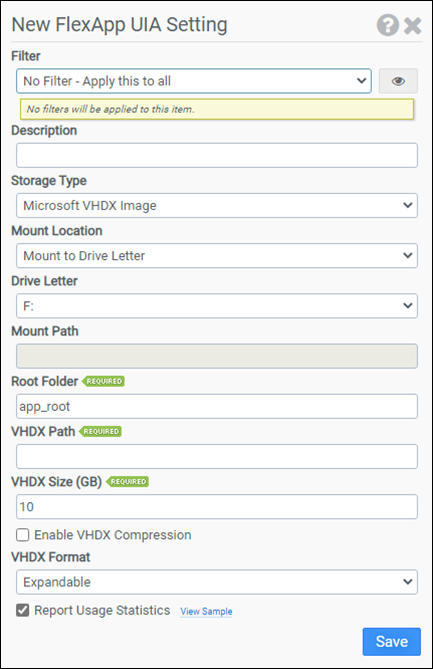
- Choose the Storage Type and assign a Drive Letter to it.
- Enter a Root Folder, VHDX Path, and VHDX Size in GB.
- Click Save.
- Click the Update button in the top right corner of the screen.
- Click the
 (Download Configuration) button to download a new INI file and activate your changes.
Installing Your First UIA Application
- Inside your user session, download a copy of your application, for example Firefox.
- Save it to disk.
- Double-click the installer. DO NOT RUN IT FROM THE BROWSER!
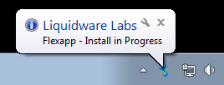
- If everything is working, you should see the following message in the notification area of the Taskbar during the install.
-
- Also, on the next log in you should still have the application you previously installed, which in this case was Firefox, as well.


