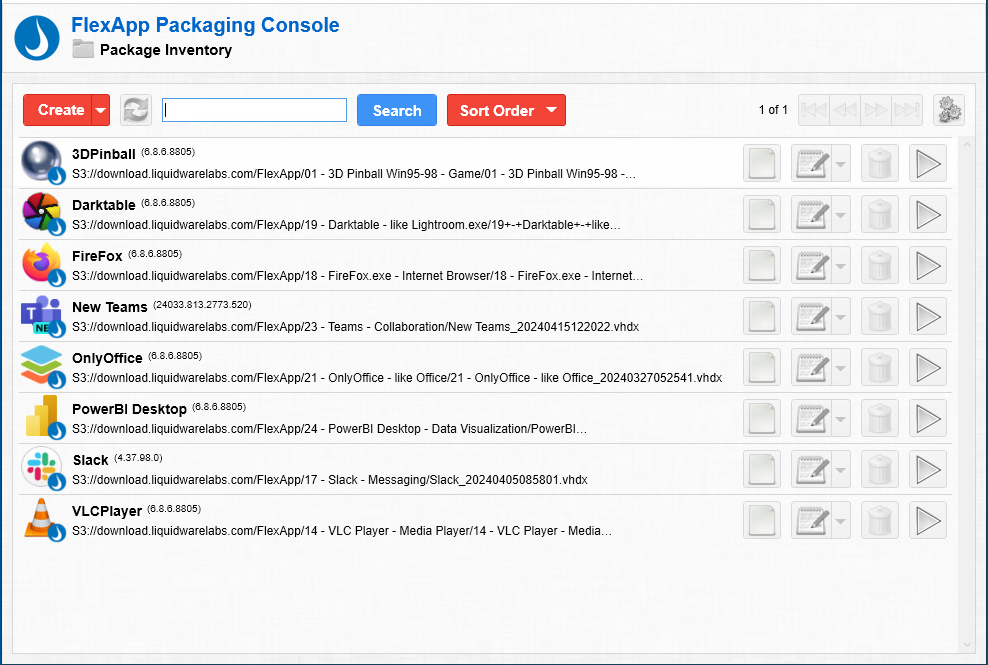
When you log in to the FlexApp Packaging Console, the Package Inventory screen appears, listing all available FlexApp Packages. Starting with version 6.8.0, several popular FlexApp packages are included automatically in the inventory list, ready for immediate use via cloud storage. If a FlexApp package is a Liquidware app, the  (Liquidware Drop) icon appears in the lower right of the application icon.
Because the original packages were created and are owned by Liquidware, these FlexApps are subject to being updated, changed, or removed at any time. Therefore, it is recommended that the Liquidware apps be cloned before extensive use in your own environment. As a general rule, Liquidware apps are intended for demo purposes only.
Sort the Inventory List
You can change the order of packages in the inventory list by clicking the Sort Order button at the top of the screen and then clicking one of the following options:
- Alphabetical
- Created Date
- Modified Date
Clicking the same sorting option again reverses the ordering of the list items. So, for example, clicking Alphabetical one time sorts the list from A to Z. Clicking Alphabetical again sorts the list from Z to A.
Hide All Liquidware Apps from the Inventory
To hide all Liquidware apps from the Package Inventory, complete the following steps:
- Log in to the ProfileUnity Management Console.
- Hover over your username in the top right corner of the screen.
- In the drop-down menu that appears, select the Administration option.
- The Administration screen opens with the Settings tab displayed.
- Scroll down to the Miscellaneous section and click to expand it.
- Select the Hide Liquidware App Catalog checkbox.
- Click the Update button in the top right corner of the screen.
- Return to the FlexApp Packaging Console and click the
 (Refresh) button to the right of the Create button.
 - The Package Inventory list is then updated and displays only FlexApp packages that you have created.


