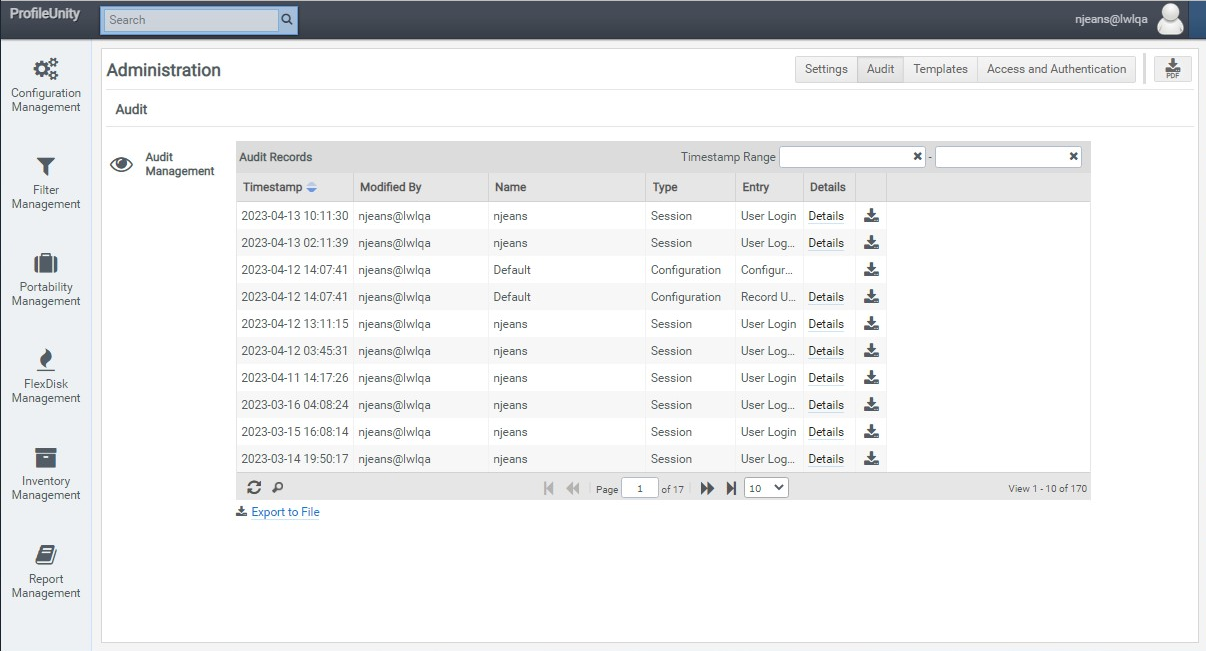
If Auditing is configured on the Settings tab of the Administration screen, ProfileUnity keeps track of changes made in your environment including logins to the Management Console, creation of new configurations, and edits made to filter, portability or configuration rules. Audit Management shows when the changes were made and who modified it. To get to these settings, complete the following steps:
- Hover over your username in the top right corner of the Management Console screen.
- In the drop-down menu that appears, click the Administration option.
- The Administration screen opens with the Settings tab displayed.
- Click the Audit tab in the top right corner of the screen.
- Use the Timestamp Range fields at the top of the Audit list to limit your search based on a start and end date.
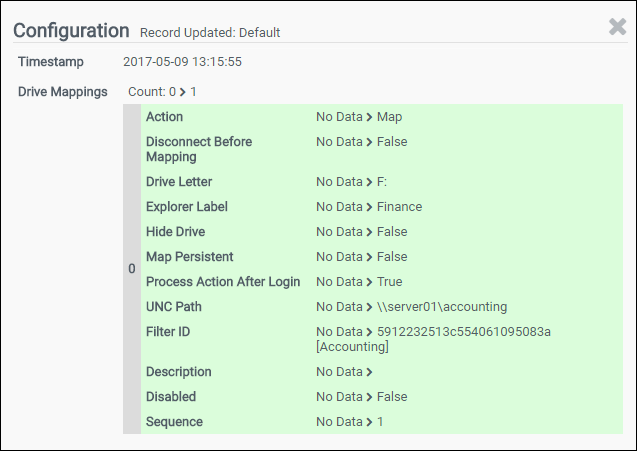
To view the details of each audit record inside of the ProfileUnity Management Console, click the Details link. For each data field, the previous value and the new value are shown.
To export a CSV file of changes from each individual record, click the Download icon at the end of each row.
To export a CSV file containing a comprehensive list of all changes, click the Export to File link at the bottom of the Audit list.
Note: You might need to allow text wrapping to see all the information contained in the Details column in the exported CSV files.
To change how many days of records Audit Management should keep or to turn Audit Management on or off, go to the Audit section of the Settings tab on the Administration screen.


