What happens to the user profile when you have a mixed environment of physical and virtual machines running different operating systems and possibly Remote Desktop Services sessions? ProfileUnity bridges the gap by truly decoupling user profiles and data from the operating system, allowing seamless movement between different versions of Windows operating systems while using one unified profile per user rather than one profile per machine type or operating system. ProfileUnity’s heterogeneous environment support allows users to log in from anywhere on any Windows device and have their user settings and data follow them wherever they go.
ProfileUnity solves the difficulties in making personal user profile data available across multiple Windows sessions. When a user logs on to a Windows session, his/her personal user profile settings are instantly pulled across the network in seconds. Customized settings such as application level customization, user-created spell checker data, Outlook signatures, desktop wallpaper, and much more are instantly made available for the user regardless of whether the machine is a VMware Horizon, Citrix Virtual Apps and Desktops (CVAD), thin client, or traditional Windows desktop.
But ProfileUnity takes profile portability one step further by allowing you to control which parts of the profile are made portable. By default, a large amount of data is stored in a user’s profile. However, not all of this data is necessary for a robust and complete user experience. ProfileUnity is granular by design, allowing you to set rules and choose which profile data you want to make portable. This decreases logon times, reduces profile corruption instances, and eliminates the needless transfer of large amounts of data over the network.
Can’t decide which parts of the user profile to make portable? Are user login times growing along with profile sizes? Are you experiencing performance issues syncing large user files, such as Outlook data files, or a large number of files kept in a file repository? ProfileUnity offers a second option for profile portability called ProfileDisk. ProfileDisk allows a user’s entire local Windows profile to be stored on a VHDX or VMDK and attached to the desktop as a separate layer when the user logs in. You will not have to spend time deciding which parts of the user’s profile should be saved and made portable across your environment to reduce profile sizes. And because the user profile is available after mounting the drive at login rather than waiting for it to be streamed across the network, large profiles load much faster for your users.
But combining ProfileDisk with Portability Management really gives you the best of both worlds. User profiles will load faster and be easier to manage while administrators will still have granular control over moving data even if another application uses non-standard practices in creating user output. We’ll cover more about ProfileDisk later and cover the basics of Portability Management here.
With ProfileUnity, making user profile data portable is a two-step process. First, you define rulesets through the Portability Management screen. Rulesets control the portions of the user profile that will follow the user around the network. Second, after your rulesets are defined, the Portability Settings configuration module is used to control how user profile data is stored and retrieved from the network. Refer to the Portability Settings Configuration module section for more details.
ProfileUnity includes predefined rulesets that are designed to manage popular settings. These predefined rulesets can be used to quickly set up portability with minimal configuration. You can modify these predefined rulesets as well as create your own rulesets.
Creating, modifying, deleting, and summarizing rulesets is done through the Portability Management screen of the ProfileUnity Management Console.
Creating a New Portability Ruleset
To add a custom profile portability ruleset in addition to the predefined rulesets included with ProfileUnity, click the Create button in the Portability Management list. You can also click Copy next to an existing ruleset to use it as a starting point for a new ruleset. Clicking Copy opens the Ruleset Editor, where you can give the ruleset a new name and make any other changes to its settings.
Viewing Where Portability Rulesets are Used
The Portability Management list includes a column called “Used In” which is the number of Configurations in which that Portability Ruleset is used. If the number is greater than zero, click the  (View Applied Configurations) icon to the right of this column. This action opens a filtered Configuration Management list that shows all Configurations using the selected ruleset. To view the full list of Configurations, click on the ‘X’ to remove the filter at the top of the Configuration Management list.
Editing Rulesets
The Ruleset Editor is where all profile portability ruleset configuration takes place. To edit a ruleset, select one of the following options in the Portability Management list.
| Button | Name | Meaning |
|---|---|---|

|
Edit | Modify an existing portability ruleset |

|
Copy | Duplicate an existing portability ruleset |
User profiles are comprised of two types of data: registry settings and files and folders. Rulesets handle these data types with registry and file system rules respectively. Rulesets consist of the following elements: a ruleset name, registry rules, and file system rules. Some rulesets contain only registry rules, some contain only file system rules, and others contain both types of rules.
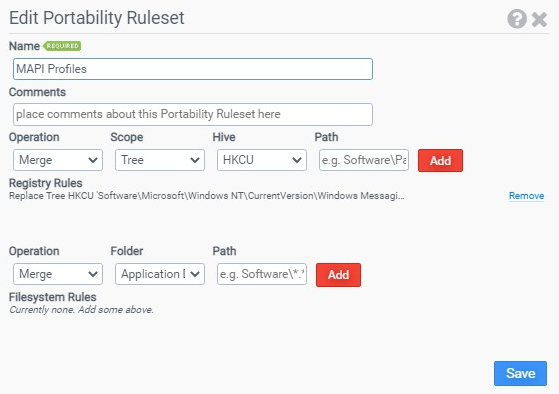
Adding and Removing Registry Rules
Registry rules are comprised of an Operation, Scope, Hive, and Path. Choose the Operation the ruleset performs from the following list:
-
Merge — Saved data is merged with existing data during restore.
-
Replace — Existing data is replaced with saved data during restore.
-
Exclude — Data is excluded from save and restore.
Choose the Scope of the operation from the following list:
-
Tree — Path specifies a key. Specified key and values, subkeys, and subkey values.
-
Key — Path specifies a key. Specified key and values only, no subkeys or subkey values.
-
Value — Path specifies a value. Specified value only.
Choose the Hive that the registry rule applies to from the following list:
-
HKCU — HKEY_CURRENT_USER registry root key.
-
HKLM — HKEY_LOCAL_MACHINE registry root key.
After you enter the Path of the registry item, click the Add button to create the new registry rule and add it to the Registry Rules list.
Important: The Path is relative to the Hive or registry root key you select. Your entries should not begin with “HKEY_CURRENT_USER” or “HKEY_LOCAL_MACHINE” because ProfileUnity adds this portion of the path by design.
A ruleset can have multiple registry rules. ProfileUnity registry rules allow granular storage and retrieval of registry values.
To delete a registry rule, select Remove to the right of the particular rule.
Registry Rule Example
| Operation | Scope | Hive | Path |
|---|---|---|---|
| Merge | Tree | HKCU | Software\Microsoft\Office |
| This registry rule saves and restores the registry values contained in the HKEY_CURRENT_USER\Software\Microsoft\Office key and all subkeys. During restore, existing data is overwritten with the saved values. | |||
Adding and Removing File System Rules
File system rules are comprised of an Operation, Folder, and Path triplet. Choose the Operation the ruleset performs from the following list:
-
Merge — Saved data is merged with existing data during restore.
-
Replace — Existing data is replaced with saved data during restore.
-
Exclude — Data is excluded from save and restore.
Similarly select the appropriate shell Folder from the following list:
| File System Rule Folder | Specified path is relative to.... |
|---|---|
| Application Data | ... the Application Data shell folder |
| Cookies | ... the Cookies shell folder |
| Desktop | ... the Desktop shell folder |
| Favorites | ... the Favorites shell folder |
| History | ... the History shell folder |
| My Documents | ... the My Documents shell folder |
| Program Group | ... the Programs shell folder |
| Recent | ... the Recent shell folder |
| Send To | ... the SendTo shell folder |
| Start Menu | ... the Start Menu shell folder |
| Startup Group | ... the Startup shell folder |
| User Profile | ... the user profile root folder |
| Local Application Data | ... the Local AppData shell folder |
| Program Files | ... the %programfiles% environment variable |
| System Drive | ... the %systemdrive% environment variable |
| System Root | ... the %systemroot% environment variable |
| My Music | ... the My Music shell folder |
| My Pictures | ... the My Pictures shell folder |
| My Video | ... the My Video shell folder |
| Temporary Internet Files | ... the Temporary Internet Files shell folder |
| NetHood | ... the NetHood shell folder |
| PrintHood | ... the PrintHood shell folder |
| Templates | ... the Templates shell folder |
| Links | ... the Links shell folder |
| Contacts | ... the Contacts shell folder |
| Searches | ... the Searches shell folder |
| Roaming Tiles | ... the Roaming Tiles shell folder |
| Libraries | ... the Libraries shell folder |
| Custom | ... a custom shell folder |
Enter the Path which specifies the folder that contains the user profile data. The Path is relative to the Folder that was selected. Click the Add button to create the new file system rule.
Important: File system rules with an empty Path component include all files/folders under the entry specified in Folder.
A ruleset can have multiple file system rules. File system rules allow granular storage and retrieval of files and folders located in the user profile.
To delete a file system rule, select Remove to the right of the particular rule triplet.
File System Rule Example
| Operation | Folder | Path |
|---|---|---|
| Merge | Application Data | Microsoft |
This file system saves and restores the files/folders contained in the Microsoft folder located in the Application Data shell folder. During restore, existing data is overwritten with the saved data. |
||
Saving or Discarding Your Changes
When you have finished editing your ruleset, click the Save button to save all your changes before leaving the Ruleset Editor. Click the X button in the top right corner of the screen to cancel your changes. All unsaved changes are discarded.
Mass Updating Portability Ruleset Options
Changes can be applied to multiple Portability Rulesets at the same time. Choose rulesets from the Portability Management list by selecting the checkbox beside each ruleset name to include in the operation. Then click on the  (Lightning) icon at the top right of the Portability Management List to choose the appropriate menu option to mass update the selected Portability Rulesets. Options include enabling, disabling, and deleting rulesets.
Importing and Exporting Portability Rulesets
Individual rulesets can also be imported into the ProfileUnity Management Console. This is done by clicking the Lightning icon in the top right corner of the Portability Management screen. Select the Import option and specify the location of the JavaScript Object Notation (JSON) portability settings file. The new ruleset is then added to the Portability Management list. Note that portability rules must have unique names. The Management Console will not import a ruleset that has the same name as a ruleset that is already in the Portability Management list.
To export or backup an existing ruleset, complete the following steps:
- Click the Portability Management option in the column on the left.
- On the Portability Management screen that appears, locate the name of the ruleset in the list.
- Click the
 (Export Portability Ruleset) button in the ruleset row.
 - Specify the location where the JSON file should be saved.
(Lightning) icon at the top right of the Portability Management list and choose either the Export Selected or Export All menu option.Disabling or Enabling Portability Settings
Rulesets can be disabled or enabled for use by the ProfileUnity configuration files by toggling the  (Disable/Enable) icon in the Portability Management list. All rulesets are enabled by default. The ruleset name will be grayed out when it is disabled.
Generating a Portability Summary Report
Documenting all the portability settings available for each configuration can be done from the Portability Management screen. Go to the Portability Management list and click either the View in PDF or View in Text icon next to the name of the ruleset to save the report in either a PDF or text format. These ruleset reports can also be used to troubleshoot issues.
Deleting Portability Rulesets
To remove an old or unused ruleset from the Portability Management screen, click the Delete icon next to the name of the ruleset, then confirm that you want to proceed with the deletion. Note that after the ruleset is deleted, it cannot be recovered.
If you attempt to delete a portability ruleset still in use by one or more of your configurations, a warning screen pops up and the ruleset is not deleted.
Important: Any time you make a change to a configuration, including portability rule settings, you must re-download or re-deploy the INI file. In addition, those changes will not take effect until the next logon event from the user. If they are currently logged in when the configuration file is downloaded, they will still be under the old configuration settings.


