The Portability Settings module is used to control the storage and retrieval of personal user preferences during logoff and logon. This module works in conjunction with the rulesets defined through the Portability Management screen. Refer to the Providing Profile Portability & Management section of this document for assistance with Portability rulesets.
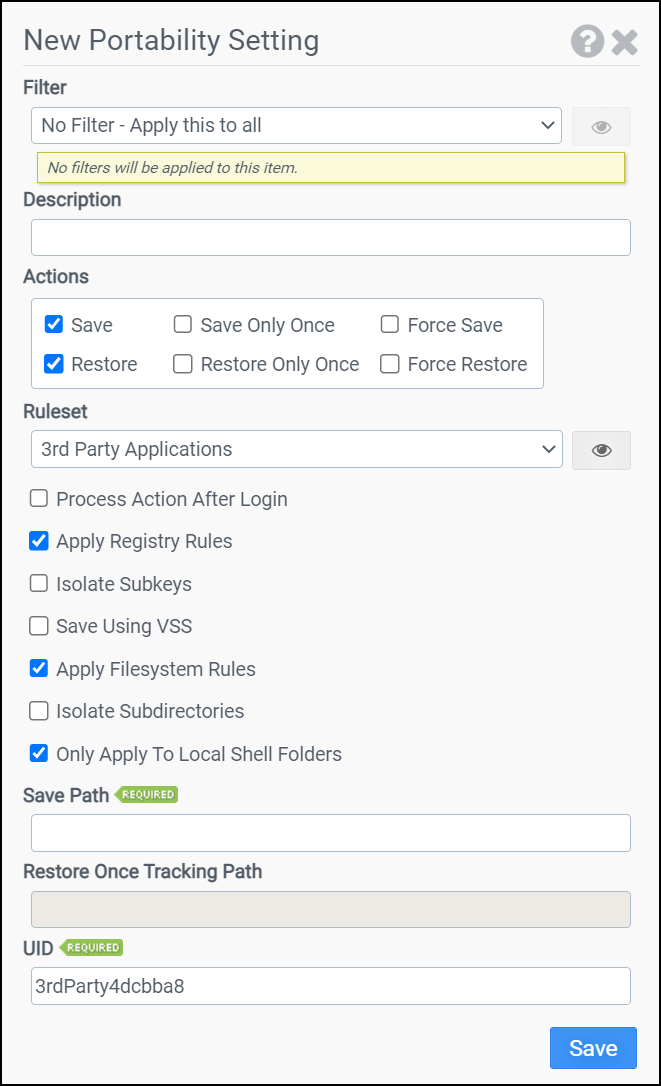
Filter
Select the name of the filter you want assigned to this configuration element. Click the Show Filter Details button on the right to review any filter settings without leaving Configuration Management.
Description
Enter a description for this rule.
Actions
Select one or more of the following actions:
- Save: During logoff settings are saved.
- Save Only After: Available if you select Save. Settings are only saved once during logoff.
- Force Save: Available if you select to Save. Always save during logoff, regardless of restore errors or any data changing.
- Restore: During logon settings are restored.
- Restore Only Once: Available if you select Restore. Settings are only restored once during logon.
- Force Restore: Available if you select to Restore. Always restore during logon. Use when restoring to locations outside the user's profile.
Ruleset
Select the name of the ruleset you want assigned to this configuration element. This option does not apply if you choose Restore as the Action. Click the Show Ruleset Details button on the right to review any portability ruleset settings without leaving Configuration Management.
Process Action After Login
Indicates whether the action should occur before or after the user has logged in. Moving select rules to process after login can speed up login times. Do not select this option if data is needed immediately after login.
Apply Registry Rules
Applies registry rules belonging to the ruleset.
Isolate Subkeys
Isolate the subkeys based on the session. This option is available if you select the Apply Registry Rules option.
Save Using VSS
The Save Using VSS (also known as Volume Shadow Copy Service or Volume Snapshot Service) option in ProfileUnity’s Portability engine allows ProfileUnity to backup files that could be locked for use or need quiescing before being saved. On logoff, a shadow copy is taken of the volume where all running processes will quiesce. Then the files listed in the portability rule are saved out. After the files are copied out, the shadow copy is removed. On single user desktops where the shadow copy services are set to disabled, ProfileUnity will set them to manual to perform the requested task then set back to disabled again. For RDS hosts, you need to have the volume shadow copy services set to manual.
Apply Filesystem Rules
Applies filesystem rules belonging to the ruleset.
Isolate Subdirectories
Isolate the subdirectories based on the session. This option is available if you select the Apply Filesystem Rules option.
Only Apply to Local Shell Folders
Filesystem rules belonging to the ruleset will not run if the rule is for a shell folder that is already set to a mapped drive or folder share. This option is available if you select the Apply Filesystem Rules option.
Save Path
The Save Path designates the UNC name of the location ProfileUnity will use to store/retrieve the portability settings.
Restore Once Tracking Path
The Restore Once Tracking Path designates the UNC name of the location ProfileUnity will use to save information about whether a restore has been performed. If blank, this information will be stored in the same directory as Save Path. This option is available if you select Restore Only Once as the Action.
UID
The UID is a unique identifier that is automatically generated by ProfileUnity. Normally, the UID does not need to be changed. The UID is used for file name generation.
Note: ProfileUnity will create a compressed file named [UID].7z in the location specified by the Save Path. This file will be used by ProfileUnity to store/retrieve the portability settings.
Example
This example saves the settings defined by the Application Data ruleset at logoff and restores them at logon. Only registry rules defined in the ruleset will be applied. The settings will be stored and retrieved from a file named wjdemgosiitd1vs.7z located in the \\ATLFS02\@userid\Citrix_Profile folder. This example leverages the macro @USERID. When ProfileUnity executes, the @USERID macro is expanded into the username.
- Filter: No Filter – Apply this to all
- Action: Save/Restore
- Ruleset: Application Data
- Apply Registry Rules: Enabled
- Isolate Subkeys: Disabled
- Apply Filesystem Rules: Disabled
- Isolate Subdirectories: Disabled
- Only Apply to Local Shell Folders: Disabled
- Save Path: \\ATLFS02\@userid\Citrix_Profile
- Restore Once Tracking Path: blank
- UID: wjdemgosiitd1vs


