The FlexApp UIA module is used to control the storage and retrieval of user installed applications in non-persistent desktop environments. Upon logout, ProfileUnity will automatically reverse play the application and remove the application from the system. FlexApp UIA applies to Windows 7/8.1 or Windows Server 2008 R2/2012 R2 only. To activate this module, check Enable FlexApp UIA Module in the Miscellaneous Settings section of the Administration screen within the Management Console.
Note: The following FlexApp UIA limitations exist. FlexApp UIA is not supported on Windows 10, Windows 11, Windows Server 2016, Windows Server 2019, Windows Server 2022, or on persistent desktops with any OS. FlexApp UIA and FlexApp DIA should not be used together on a user’s desktop. They can be used separately.
Use this module along with the Privilege Elevation & Application Restrictions modules to provide Application Rights Management (ARM) that enables administrators to securely grant specific users detailed application rights without making them a Windows Administrator.
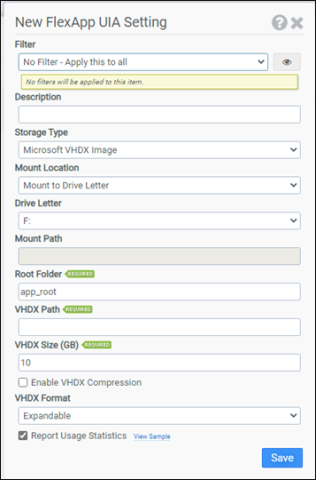
Filter
Select the name of the filter you want assigned to this configuration element. Click the Show Filter Details button on the right to review any filter settings without leaving Configuration Management.
Description
Enter a description for this rule.
Storage Type
Select the type of storage to use for user installed applications: Microsoft VHDX Image
Mount Location
Select the type of location that will be used to mount the user storage for any applications. Choose from Mount to Drive Letter or Mount to Path.
Drive Letter
If Mount to Drive Letter is selected, choose the drive letter to use for user installed application storage. When using the VHDX storage type, the VHD/VHDX image will be mounted at the chosen drive letter. When using the persistent disk storage type, the chosen letter will need to match the letter where the persistent disk is already mounted.
Mount Path
If Mount to Path is selected, enter the path to the user installed application storage.
Root Folder
The Root Folder designates the top level or root folder used to store user installed applications on the selected Drive Letter.
VHDX Path
The VHDX Path designates the UNC location ProfileUnity will use to store/retrieve the VHD/VHDX file containing the user installed applications.
VHDX Size in GB
Enter the maximum size in gigabytes that the VHD/VHDX will be allowed to use. This parameter is only used during initial virtual hard drive creation.
Enable VHDX Compression
Selecting this option will enable compression on the VHD/VHDX volume. This option is only used during initial virtual hard drive creation.
VHDX Format
Select whether the VHD/VHDX volume should be Expandable or Fixed size. This option is only used during initial virtual hard drive creation.
Report Usage Statistics
Reports usage statistics back to Liquidware.
Example
This example will create a VHDX named flexapp.vhdx located in the \\ATLFS02\@USERID share. The VHDX volume will be mounted as drive letter F:, limited to 10GB in size, have compression enabled, and will be expandable. User installed applications will use F:\app_root for storage and will be played back after the desktop loads. This example leverages the macro @USERID. When ProfileUnity executes, the @USERID macro is expanded into the username. Usage statistics will report back to Liquidware.
- Filter: No Filter – Apply this to all
- Storage Type: Microsoft VHDX Image
- Mount Location: Mount to Drive Letter
- Drive Letter: F:
- Root Folder:
app_root - VHDX Path:
\\ATLFS02\@userid$ - VHDX Max Size: 10GB
- Enable VHDX Compression: Selected
- VHDX Type: Expandable
- Report Usage Statistics: true


