This module allows you to make changes to the registry on your client machines. Choose whether to add registry settings manually, browse local settings, or browse server settings to select registry settings.
Note: This configuration module has moved. Formerly, the Registry module followed the RDP Client module. Starting with 6.5, the Registry module follows the Environment Variable module. Since most module settings are processed in the same order as they appear on the Configuration Management screen, it is possible for behavioral differences to exist between older and newer configurations created with different versions of the ProfileUnity Management Console.
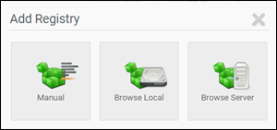
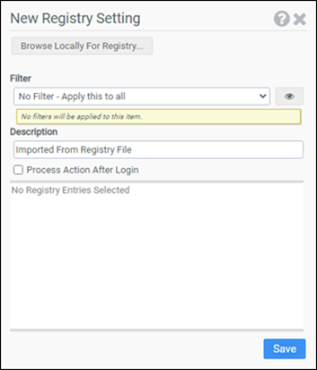
Select Browse Local and then click the “Browse Locally for Registry…” button to search locally for registry settings.
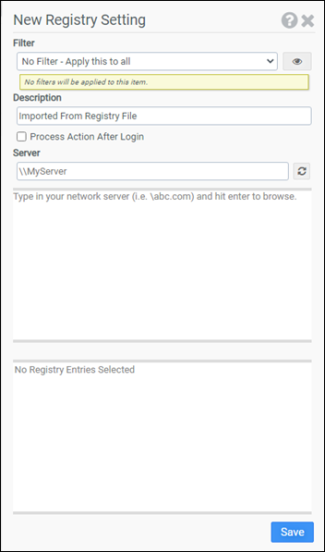
Select Browse Server and then type your server name and press Enter to search a server for registry settings.
Select Manual to set up registry settings manually.
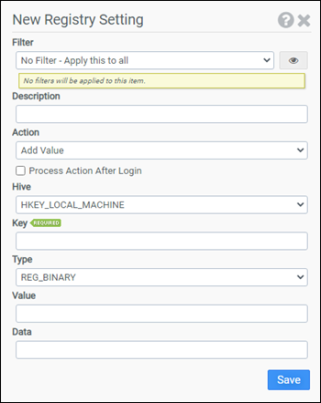
Filter
Select the name of the filter you want assigned to this configuration element. Click the Show Filter Details button on the right to review any filter settings without leaving Configuration Management.
Description
Enter a description for this rule.
Action
Select one of the following actions:
- Add Value: Modifies or creates a value and assigns data to it.
- Delete Value: Deletes a value and associated data.
- Add Key: Adds the specified key.
- Delete Key: Deletes the specified key.
Process Action Post Login
Process the action after a user logs in. Moving select rules to process after login can speed up login times.
Hive
Select the registry hive containing the key or value you want to modify. Choose from:
- HKEY_LOCAL_MACHINE
- HKEY_USERS
- HKEY_CURRENT_CONFIG
- HKEY_CLASSES_ROOT
- HKEY_CURRENT_USER
Key
Enter the subkey of the Hive you want to modify.
Type
Select the Type of the Value you want to modify. This option is only available if Add Value is selected as the Action. Choose from:
- REG_BINARY
- REG_DWORD
- REG_EXPAND_SZ
- REG_MULTI_SZ
- REG_SZ
- REG_QWORD
Value
Enter the value you want to modify. This option is only available if Add Value or Delete Value is selected as the Action.
Data
Enter the data you want assigned to the value. This option is only available if Add Value is selected as the Action.
Example 1
Example 1 adds the key Software\MyCompany\Test to the HKEY_CURRENT_USER hive.
- Filter: No Filter – Apply this to all
- Action: Add Key
- Hive: HKEY_CURRENT_USER
- Key: Software\MyCompany\Test
Note: The Add Key action creates missing subkeys automatically. In the above example, the MyCompany subkey will be created if it does not already exist.
Example 2
Example 2 demonstrates using the Registry module to update Internet Explorer settings. Setting the Persistent value to 0 instructs Internet Explorer to empty the temporary Internet files folder when the browser is closed.
- Filter: No Filter – Apply this to all
- Action: Add Value
- Hive: HKEY_CURRENT_USER
- Key: Software\Microsoft\Windows\CurrentVersion\Internet Settings\Cache
- Type: REG_DWORD
- Value: Persistent
- Data: 0
Note: The Add Value action creates missing subkeys automatically. In the above example, the subkey Software\Microsoft\Windows\CurrentVersion\Internet Settings\Cache will be created if it does not already exist.


