After an application package has been created, the package settings can be changed to customize the application for running in your environment. Editing is carried out by clicking the down arrow beside the Edit the package button and selecting one of the options from the drop-down list that appears.
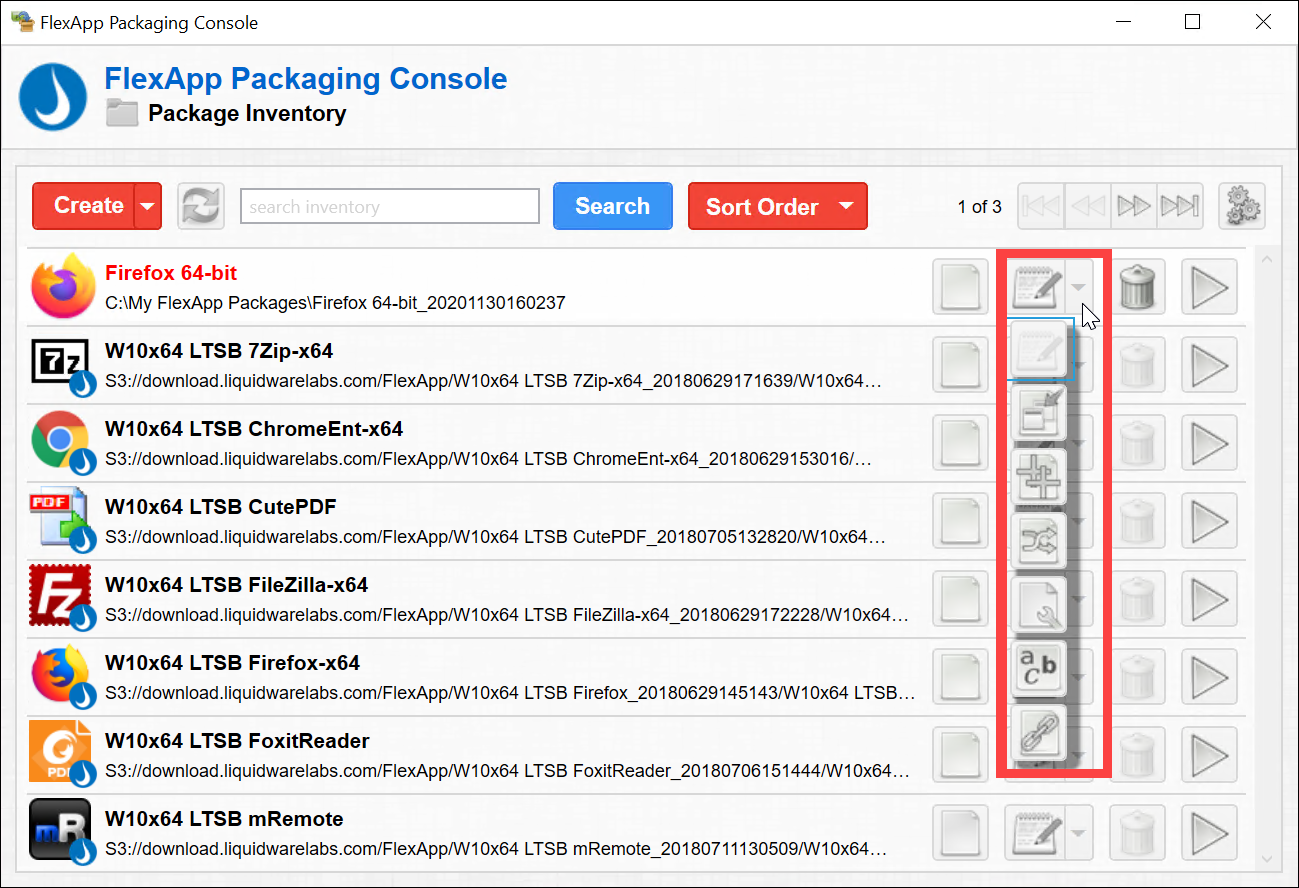
The list that displays varies depending on the kind of package you are accessing. The following is a list of all of the editing options that might appear:
- Edit a package
- Edit a package's metadata
- Extend a package
- Clone a package
- Patch an Existing FlexApp Package
- Merge a package
- Set up Predictive Block Caching for a package
- Configure a package
- Add scripts to a package
- Edit dependencies of a package
Note the following regarding the editing options:
- Some options require the package to be activated first, while other editing functions work with the package deactivated.
- Some options are disabled if a FlexApp Package is currently configured for use in the ProfileUnity Management Console. Removing those packages from use in the Management Console and refreshing the FlexApp Packaging Console makes them available for editing again. Alternatively, Clone the package and make changes to the new package. When complete, replace the old package in the ProfileUnity configuration, FlexApp module with the new one for the changes to take effect.
- The only editing options available for Liquidware apps are Clone a package and Merge a Package.
Note: If you are making changes to the FlexApp module in the ProfileUnity Management Console at the same time you have the FlexApp Packaging Console open, click the Refresh button at the top of the FlexApp Packaging Console to update the Package Inventory list and update access to editing functions.


