This module allows you to launch applications on your client machines during or after ProfileUnity execution.
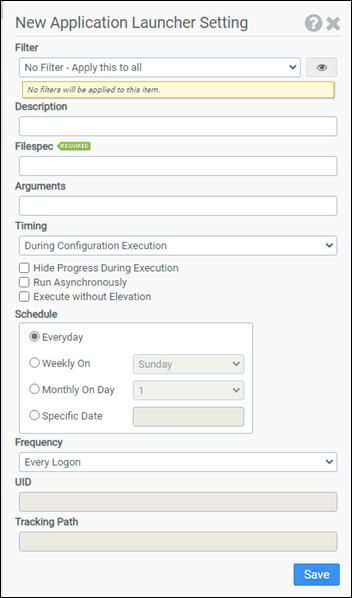
Filter
Select the name of the filter you want assigned to this configuration element. Click the Show Filter Details button on the right to review any filter settings without leaving Configuration Management.
Description
Enter a description for this rule.
Filespec
Enter the full path to the executable. Surrounding quotes are automatically added to the filespec.
Arguments
Enter any arguments required by the executable.Arguments are not automatically quoted.
Timing
Choose whether your application should launch during or after ProfileUnity execution.
Hide Progress During Execution
Selecting this option will hide the ProfileUnity progress display while your application executes. This option is not available if you enable Run Asynchronously.
Run Asynchronously
By default, ProfileUnity waits for your application to terminate prior to continuing. When this option is selected, ProfileUnity will not wait for your application to terminate. This option is not available if you enable Hide Progress During Execution.
Execute without Elevation
Select this option to run the application without privilege elevation.
Schedule
Choose the schedule your application should execute on:
- Everyday
- Weekly and select a particular day of the week
- Monthly and select a particular day of the month
- Specific Date and select the date
Frequency
Choose the frequency your application should execute on:
- Every Logon
- Once Per Day (Computer)
- Once Per Day (User)
- One Time (Computer)
- One Time (User)
UID
The UID is a unique identifier that is automatically generated by ProfileUnity. Normally, the UID does not need to be changed. Changing the UID will reset the execution history associated with the application. For example, if you chose a frequency of One Time (User) and you want the application to run a second time, changing the UID will cause the application to execute again. This option does not apply if you choose a Frequency of Every Logon.
Tracking Path
The Tracking Path designates the UNC name of the network share ProfileUnity will use to store execution history. When you create the share, you will need to grant write permission to all users using ProfileUnity. If this share is unavailable or does not have write permission, ProfileUnity will not execute the application. This option does not apply if you choose a Frequency of Every Logon.
Note: Inside the share, ProfileUnity will create a folder named after the UID of the application. Therefore, it is safe to use the same share as the Tracking Path for multiple applications. If you want to reset the execution history for an application, you can delete the folder associated with the application’s UID.
Example
This example will launch Adobe Acrobat and open the file Employee Handbook.pdf one time for each user. Since Run Asynchronously has been enabled, ProfileUnity will not wait for the user to close the Acrobat reader. The Arguments passed to the Filespec have been surrounded with quotes as Employee Handbook.pdf contains a space.
- Filter: No Filter – Apply this to all
- Filespec: C:\Program Files\Adobe\Acrobat 6.0\Acrobat\Acrobat.exe
- Arguments: “\\ATLFS01\public\Employee Handbook.pdf”
- Timing: After Configuration Execution
- Run Asynchronously: Enabled
- Schedule: Everyday
- Frequency: One Time (User)
- UID: gtnj8nvrp4oe38m
- Tracking Path: \\ATLFS02\apptrack$$
Note: The share name used for the Tracking Path is \\ATLFS02\apptrack$. Since $ is a reserved character, it has been escaped with $$. Refer to the Using Reserved Characters section in Appendix C: Configuration Modules for assistance using reserved characters.


