The Application Restrictions module allows or denies users access to applications providing allow/deny options for installed applications per user.
Use this module along with the Privilege Elevation module to provide Application Rights Management (ARM) that enables administrators to securely grant specific users detailed application rights without making them a Windows Administrator. More specifically, the Application Restrictions module allows organizations to minimize their number of base images while ensuring they are compliant with licensing and imaging agreements.
Administrators can add any number of Allow or Deny rules in the Application Restriction module. The rules are evaluated sequentially starting with the first one at the top of the list. When a filter returns true for an individual user, then that rule sets whether the Application Restriction module becomes an “all allow” or “all deny” list for that user. If that first true rule has an Allow Action, then any of the remaining Allow rules in the module list where the filter is also true will apply. If instead the first true filter rule has a Deny Action, then it will become an allow ALL, EXCEPT... list for that user where having an initial Allow rule will be treated as deny ALL, EXCEPT ....
The application access policy will be applied based on whether the rules evaluate to create an Allow List or a Deny List. If the rules evaluate to create a Deny List for a user, then the user can run any applications except for those specified in the deny rules. If the rules evaluate to create an Allow List for a user, then the user can only run applications that are specified by the allow rules. Access to other applications will be denied. By default, the following processes are automatically allowed:
- ProfileUnity processes
- All system processes
- Processes from
C:\Windowsand subdirectories - Processes signed by VMware or Citrix
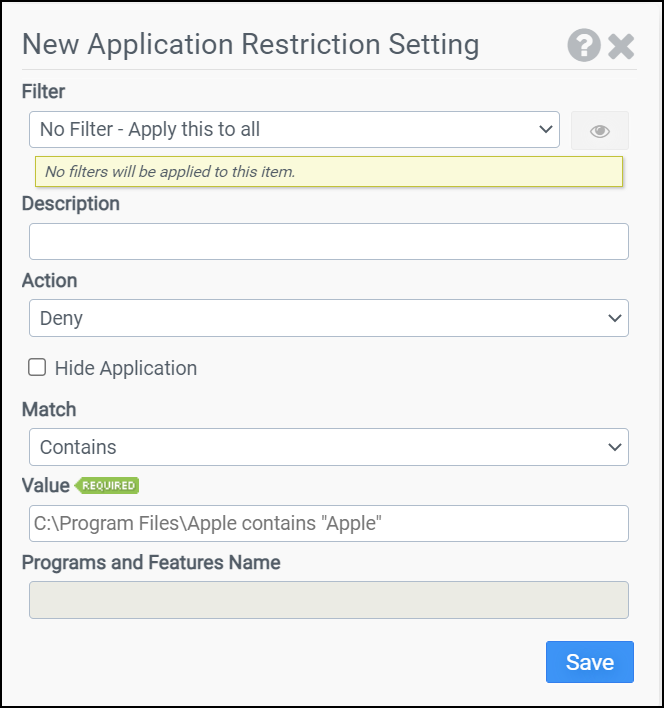
Filter
Select the name of the filter you want assigned to this configuration element. Click the Show Filter Details button on the right to review any filter settings without leaving Configuration Management.
Description
Enter a description for this rule.
Action
Select one of the following actions:
- Allow
- Deny
Hide Application
If you prefer to hide an entire application's folder instead of just restricting execution from it, you can use this option by setting the Action field to Deny, setting the Match field to Starts With and entering in the Value field the folder you would like to hide. This also prevents users from running executables from within the specified path.
Match
Select the Match condition to test against: Contains, Equals, Hash, Starts With, Ends With, or Signed.
Value
Enter the value to test against.
Programs and Features Name
Optionally, if the Hide Application checkbox is selected and you also want to hide its entry in Programs and Features, type the name of an application, ex: Google Chrome. This must match a name in the Registry found under HKLM\Software\Microsoft\Windows\CurrentVersion\Uninstall.
Example
This example will allow non-admin users to run applications signed by Liquidware Labs, Inc.
- Filter: No Filter – Apply this to all
- Action: Allow
- Match: Signed
- Value: Liquidware Labs, Inc.


