This module allows you to create shell shortcuts and web links.
Choose whether to add a shortcut manually or browse the server to select multiple shortcuts to be added at one time.
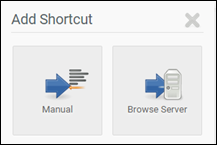
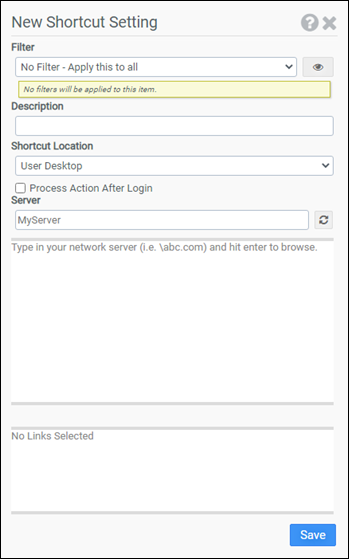
To search a server for a LNK file containing shortcut settings, click the Browse Server button, then type your server name and press Enter.
Click the Manual button to configure shortcut settings manually. All options for the Advanced settings are shown below.
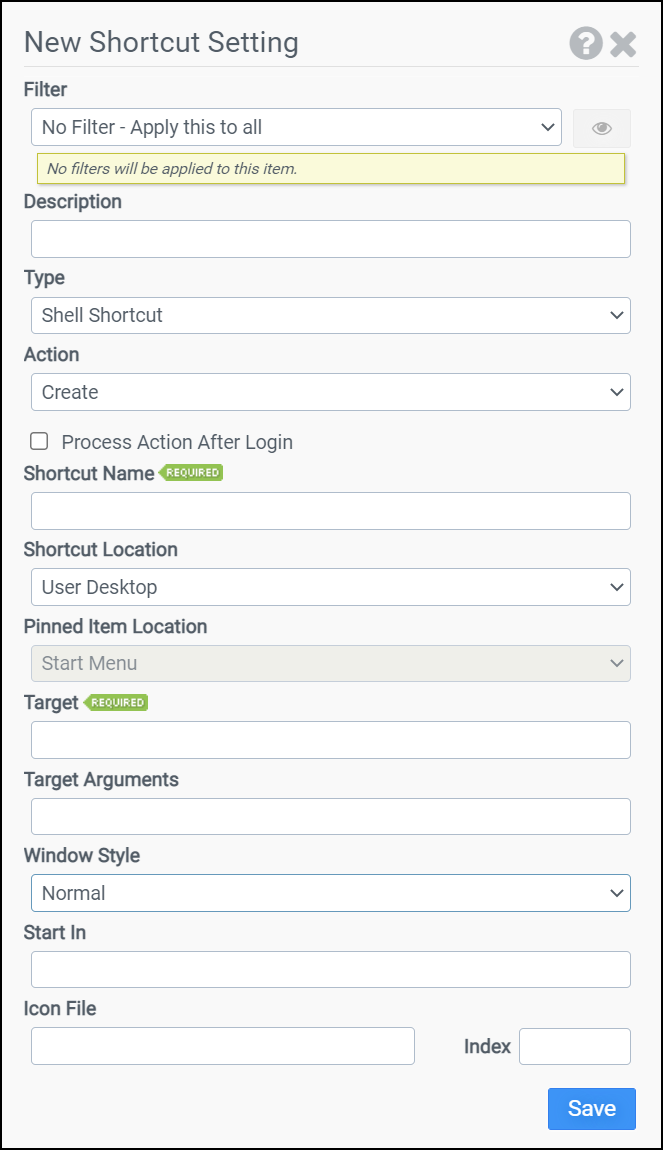
Filter
Select the name of the filter you want assigned to this configuration element. Click the Show Filter Details button on the right to review any filter settings without leaving Configuration Management.
Description
Enter a description for this rule.
Type
Select the type of shortcut you want to create or delete. Shell shortcuts are pointers to programs and files on your computer. Web links are used by Internet Explorer for accessing sites on the Internet. Choose from:
- Shell Shortcut
- Web Link
- Pinned Item
Action
Select one of the following actions:
- Create: Creates a new shortcut or pinned item
- Delete: Deletes an existing shortcut or pinned item
- Delete All: Deletes all existing shortcuts in a specific location
- Delete All (ProU): Deletes all shortcuts created by ProU located in commonly used shortcut folders
Process Action After Login
Indicates whether the action should occur before or after the user has logged in.
Shortcut Name
Enter the name of the shortcut you want to create or delete. Subfolders can be specified by entering the relative path followed by the shortcut name. Surrounding quotes are automatically added to the name.
Shortcut Location
Select the location where the shortcut should be created or deleted:
- User Desktop
- User Favorites
- User Start Menu
- User Programs Group
- User Startup Group
- User Send To
- User Quick Launch Bar
- User Links
- All Users Desktops
- All Users Start Menu
Pinned Item Location
Choose the location where the pinned item should be created or deleted if Pinned Item was selected for the Type:
- Start Menu
- Taskbar
- Quick Access
Target
When creating a Shell Shortcut, enter the full path to the shortcut target. When creating a Web Link, enter the URL you want the link to resolve to. Surrounding quotes are automatically added to the target. This option is only available if Shell Shortcut or Web Link is selected as the Type and Create is selected as the Action.
Note: When creating a Shell Shortcut, you must specify the full path in the Target field. Partial paths are not supported. When creating web links, you must specify the full URL in the Target field. A full URL starts with http://, https://, or ftp://.
For Modern Apps or apps installed from the Windows Store, you will need to provide the Application User Model ID (AUMID) rather than the full path of the desktop application executable. For example, the AUMID for Skype is Microsoft.SkypeApp_kzf8qxf38zg5c!App. The AUMID can be found several ways including using the Registry or PowerShell. When using the Registry, search for the AppUserModelID. When using Windows PowerShell, run the following script to list the AUMIDs installed on a desktop:
$installedapps = get-AppxPackage
                foreach ($app in $installedapps)
                {
                foreach ($id in (Get-AppxPackageManifest $app).package.applications.application.id)
                {
                $line = $app.Name + " = " + $app.packagefamilyname + "!" + $id
                echo $line
                }
            }
Target Arguments
Enter any arguments required by the shortcut target. Target Arguments are not automatically quoted. This option is only available if Shell Shortcut or Pinned Item is selected as the Type and Create is selected as the Action.
Window Style
Enter the type of window the shortcut should open. Choose from: Normal, Maximized, or Minimized. This option is only available if Shell Shortcut is selected as the Type and Create is selected as the Action.
Start In
Enter the working directory the shortcut target should start in. Surrounding quotes are automatically added to the start in directory. This option is only available if Shell Shortcut or Pinned Item is selected as the Type and Create is selected as the Action.
Icon File
Enter the full path to the icon the shortcut should use. Surrounding quotes are automatically added to the icon file. This option is only available if Shell Shortcut or Web Link is selected as the Type and Create is selected as the Action.
Index
If the shortcut icon file contains more than one icon, enter the numerical index of the icon the shortcut should use. This option is only available if Shell Shortcut or Web Link is selected as the Type and Create is selected as the Action.
Example 1
This example creates a shell shortcut named Tax Tables. The shortcut will be created in the User Start Menu in a subfolder named Finance. When double clicked, the shortcut will open P:\Finance\Tax Tables.xls in Microsoft Excel.
- Filter: No Filter – Apply this to all
- Type: Shell Shortcut
- Action: Create
- Shortcut Name: Finance\Tax Tables
- Shortcut Location: User Start Menu
- Target: P:\Finance\Tax Tables.xls
- Start In: P:\Finance
Note: Missing subfolders are created automatically. In the above example, the Finance folder will be created if it does not already exist.
Example 2
This example creates a web link named Company Intranet on the User Desktop. When double clicked, the shortcut will open the website http://int.mycompany.com in Internet Explorer.
- Filter: No Filter – Apply this to all
- Type: Web Link
- Action: Create
- Shortcut Name: Company Intranet
- Shortcut Location: User Desktop
- Target: http://int.mycompany.com


