This module allows you to connect and disconnect network printers. Options include setting a capture port, setting the printer as default, and automatically adding the printer. Filters are frequently used with the Shared Printers module to manage printer assignments. Filters provide a wide-array of context-aware environment and security options. In a mobile environment, assigning printers can be based on the location of the desktop so that users are only assigned printers they can reasonably access. Printer access can also be restricted, for example, to certain users authorized to use special watermark paper on specific printers for deliverables such as checks, official transcripts, or prescriptions.
Choose whether to add a printer manually or browse the print server to select multiple printers to be added at one time.
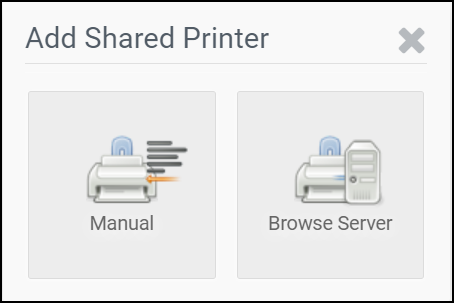
Select Browse Server to see a list of printer options.
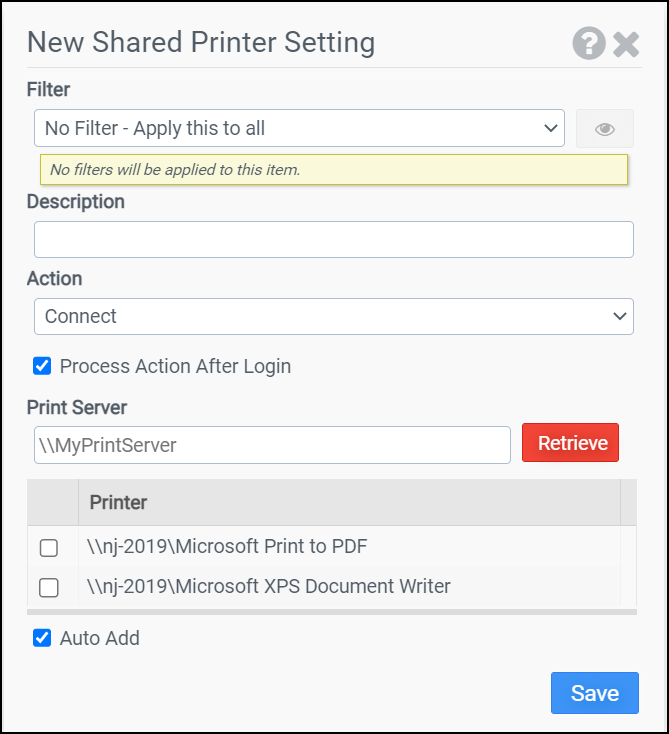
Enter the path to the Print Server, then click the Retrieve button. Select the printers to add from the list of available printers on that server.
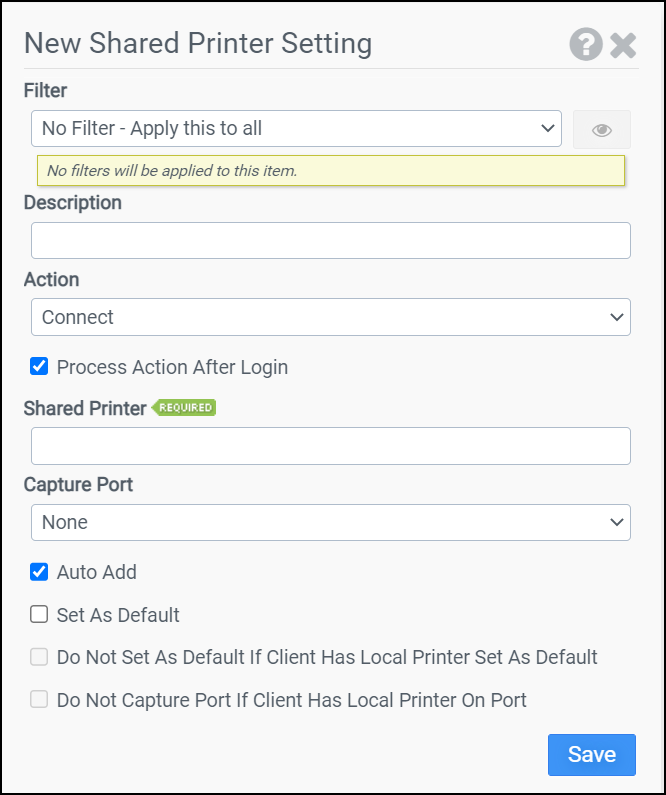
Select Manual to set up individual printers manually.
Filter
Select the name of the filter you want assigned to this configuration element. Click the Show Filter Details button on the right to review any filter settings without leaving Configuration Management.
Description
Enter a description for this rule.
Action
Select one of the following actions:
- Connect: Installs a network printer connection / captures a port.
- Disconnect: Removes a network printer connection / disconnects a port.
- Disconnect All: Removes all network printer connections and disconnects LPT ports 1-9.
Process Action After Login
Determines whether the printer mapping should occur before or after the user has logged in.
Print Server
(Browse Server setup only) Enter the print server you want to search. Click the Retrieve button to pull a list of available printers. Select the printer options you want to use.
Shared Printer
(Manual setup only) Enter the UNC name of the shared printer. This option is not available if Disconnect All is selected as the Action.
Note: When Disconnect is selected as the Action, the server name portion of the UNC name must match the server name used when the printer was connected. For example, if the printer was connected with the UNC name \\psvr.company.com\hplj you cannot use the UNC name \\psvr\hplj for the Disconnect Action.
Capture Port
(Manual setup only) Select the port you want to capture or disconnect. This option is not available if Disconnect All is selected as the Action.
Auto Add
Selecting this option will automatically install the printer on Windows clients. This option is only available if Connect is selected as the Action.
Note: This option leverages Microsoft Point and Print technology. The printer and drivers must be properly configured on the server for this option to function. The easiest way to test Point and Print is to attempt connecting to the printer from a client. If a client machine can connect without prompting for drivers, Point and Print is properly configured.
Set As Default
(Manual setup only) Selecting this option will set the printer as the default. This option is only available if Connect is selected as the Action and Auto Add is selected.
Do Not Set As Default If Client Has Local Printer Set As Default
(Manual setup only) Selecting this option will prevent the printer from being set as the default if the client system has a local printer configured as the default. This option is only available if Connect is selected as the Action and Set As Default is selected.
Do Not Capture Port If Client Has Local Printer On Port
(Manual setup only) Selecting this option will prevent the port from being captured if the client system has a local printer installed on the port. This option is only available if Connect is selected as the Action and a Capture Port has been selected.
Example 1
Example 1 redirects the LPT1: port on all clients after the user logs in +to the network printer NYCP07 on server PSVR. This example will also install the network printer and set it as the default printer on the client machines.
- Filter: No Filter – Apply this to all
- Action: Connect
- Process Action After Login: Selected
- Shared Printer: \\PSVR\NYCP07
- Capture Port: LPT1:
- Auto Add: Selected
- Set as Default: Selected
- Do Not Set as Default If Client Has Local Printer Set As Default: Not selected
- Do Not Capture Port If Client Has Local Printer On Port: Not selected
Note: When a network printer is installed, the drivers used by the printer are transferred from the server to the client system.
Example 2
Example 2 removes the network printer \\PSVR\ATLP01 after the user logs in on the client machines.
- Filter: No Filter – Apply this to all
- Action: Disconnect
- Process Action After Login: Selected
- Shared Printer: \\PSVR\ATLP01
- Capture Port: Not selected
Note: When a network printer is removed, the drivers used by the printer are not removed from the client system.


