The Drive Mapping module is used to connect and disconnect network drives.
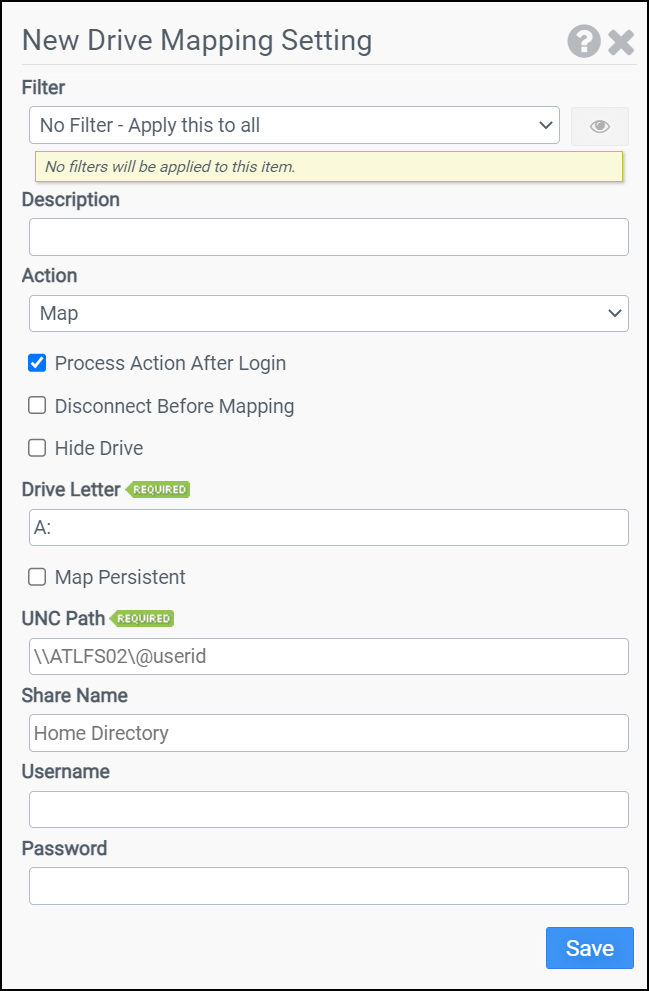
Filter
Select the name of the filter you want assigned to this configuration element. Click the Show Filter Details button on the right to review any filter settings without leaving Configuration Management.
Description
Enter a description for this rule.
Action
Choose whether you want to Map a drive, Disconnect a drive, or Disconnect All drives.
Process Action After Login
Determines whether the drive mapping should occur before or after the user has logged in.
Disconnect Before Mapping
Selecting this option will disconnect the drive before mapping it. This option only applies if you choose Map as the Action.
Hide Drive
Selecting this option will hide the drive. This option only applies if you choose Map as the Action.
Drive Letter
Enter the drive letter you want to Map or Disconnect. This option does not apply if you choose Disconnect All as the Action.
Map Persistent
Persistent drive mappings are mappings that are reconnected automatically at the next logon. This option only applies if you choose Map as the Action.
UNC Path
Enter the UNC Path you want the Drive Letter mapped to. This option only applies if you choose Map as the Action.
Share Name
The Share Name is the name that will show up in My Computer and the standard Windows dialog boxes next to the drive letter. This option only applies if you choose Map as the Action.
Important: ProfileUnity leverages Windows Scripting Host to change the Share Name. If you disable Windows Scripting Host on your clients, ProfileUnity will be unable to modify the Share Name.
Username
Enter the username to be used when establishing the connection to the UNC path.
Password
Enter the password to be used when establishing the connection to the UNC path.
Example 1
Example 1 will disconnect all drives after the user logs in.
- Filter: No Filter – Apply this to all
- Action: Disconnect All
- Process Action After Login: Selected
Example 2
Example 2 leverages the macro @USERID. When ProfileUnity executes, the @USERID macro is expanded into the username. Therefore, the H: drive will be mapped to a per-user share located on server ATLFS02. The drive will be mapped persistent and will be assigned the label Home Directory after the user logs in.
- Filter: No Filter – Apply this to all
- Action: Map
- Process Action After Login: Selected
- Disconnected Before Mapping: Unselected
- Hide Drive: Unselected
- Drive Letter: H:
- Map Persistent: Enabled
- UNC Path: \\ATLFS02\@userid
- Share Name: Home Directory


