This module allows you to modify settings that control the Windows user interface.
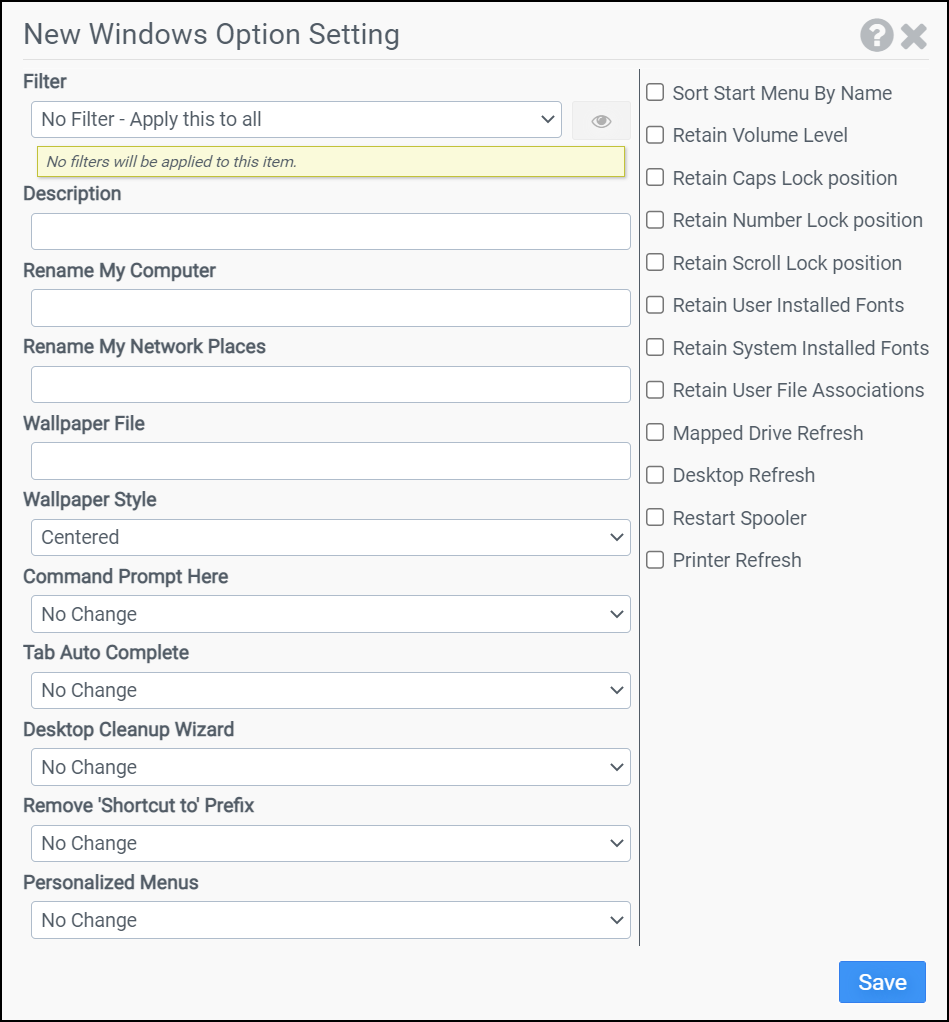
Filter
Select the name of the filter you want assigned to this configuration element. Click the Show Filter Details button on the right to review any filter settings without leaving Configuration Management.
Description
Enter a description for this rule.
Rename My Computer
Enter the name you want My Computer renamed to.
Note: The recommended setting is the macro @WKSTA. The @WKSTA macro expands into the name of the computer during user logon.
Rename My Network Places
Enter the name you want My Network Places renamed to.
Wallpaper File
Enter the full path to the bitmap file Windows should use as desktop wallpaper.
Note: The wallpaper file must be a bitmap.
Wallpaper Style
Choose the style of your wallpaper: Tiled, Centered, or Stretched.
Command Prompt Here
This option enables you to right-click a folder in Windows Explorer and choose Command Prompt Here. This action opens a Command Prompt window with the selected folder as your Active Directory. Available choices are Enable, Disable, and No Change.
Tab Auto Complete
This option controls command prompt auto complete functionality. When enabled, you can start typing the name of a file in a command prompt and then press TAB. The shell will attempt to complete the name of the file for you. Available choices are Enable, Disable, and No Change.
Desktop Cleanup Wizard
The Desktop Cleanup Wizard displays a list of the desktop icons that have not been used for 60 days or more, enabling you to remove those icons that you do not want on your desktop. This option allows you to control the Desktop Cleanup Wizard setting used by your users. Available choices are Enable, Disable, and No Change. This option is only available on Windows XP.
Remove "Shortcut To" Prefix
This option allows you to remove the "Shortcut to" text prefix on your shortcuts. Available choices are Enable, Disable, and No Change.
Personalized Menus
On Windows clients, the start menu is automatically updated to keep the items you use most often at the top of the menu where they are usually more accessible. This option allows you to control the Personalized Menus setting used by your users. Available choices are Enable, Disable, and No Change.
Sort Start Menu by Name
Selecting this option will sort the Start Menu alphabetically.
Retain Volume Level
Restore volume and mute settings across a user's systems on logon.
Retain Caps Lock Position
Restore caps lock settings across a user's systems on logon.
Retain Num Lock Position
Restore number lock settings across a user's systems on logon.
Retain Scroll Lock Position
Restore scroll lock settings across a user's systems on logon.
Retain User Installed Fonts
Record and restore user installed fonts.
Retain System Installed Fonts
Record and restore system installed fonts.
Retain User File Associations
Record and restore user file associations.
Mapped Drive Refresh
Refresh mapped drives (used if drives are restored via the portability module).
Desktop Refresh
Sends a general desktop refresh message to the OS.
Restart Spooler
Restarts the printer spooler service.
Printer Refresh
Removes and reads printers.
Example
The following example renames My Computer to the computer's name, sets the wallpaper file to P:\MyCompany.bmp, enables Command Prompt Here, enables Tab Auto Complete, disables the Desktop Cleanup Wizard, disables Personalized Menus, preserves volume level, and sorts the Start Menu alphabetically.
- Filter: No Filter - Apply this to all
- Rename My Computer: @wksta
- Rename My Network Places:
- Wallpaper File: P:\MyCompany.bmp
- Command Prompt Here: Enable
- Tab Auto Complete: Enable
- Desktop Cleanup Wizard: Disable
- Remove "Shortcut To" Prefix: No Change
- Personalized Menus: Disable
- Sort Start Menu by Name: Selected
- Retain Volume Level: Selected
- Retain Caps Lock Position: Not Selected
- Retain Num Lock Position: Not Selected
- Retain Scroll Lock Position: Not Selected
Note: Leaving a value blank will preserve the current setting. In the above example, My Network Places will not be renamed.


