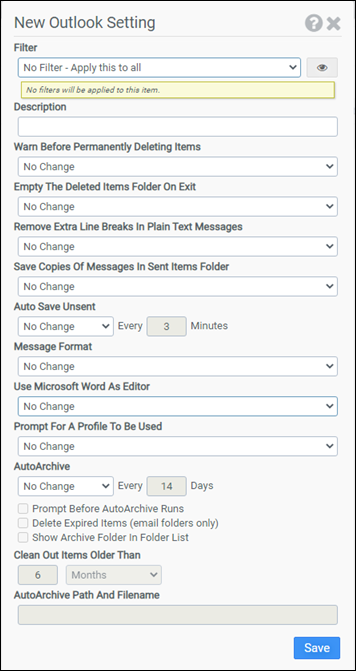
This module allows you to modify settings that control Microsoft Outlook’s behavior for message handling, message format, and AutoArchive.
Filter
Select the name of the filter you want assigned to this configuration element. Click the Show Filter Details button on the right to review any filter settings without leaving Configuration Management.
Description
Enter a description for this rule.
Warn Before Permanently Deleting Items
This option controls the display of a warning message prior to deleting items. Available choices are Enable, Disable, and No Change.
Empty The Deleted Items Folder On Exit
When this option is enabled, Outlook will delete items in the Deleted Items folder when closed. Available choices are Always, Never, On Sunday, On Monday, On Tuesday, On Wednesday, On Thursday, On Friday, On Saturday, and No Change.
Remove Extra Line Breaks In Plain Text Messages
When this option is enabled, Outlook will remove extra line breaks in plain text messages. Available choices are Enable, Disable, and No Change. This option supports Outlook 2003 and newer versions.
Save Copies Of Messages In Sent Items Folder
When this option is enabled, Outlook will save copies of sent messages in the Sent Items folder. Available choices are Enable, Disable, and No Change.
AutoSave Unsent
This option controls when Outlook saves unsent items. Available choices are Enable, Disable, and No Change. If you enable this option, you will need to specify the number of minutes.
Message Format
This option controls the message format used by Outlook. Available choices are HTML, Rich Text, Plain Text, and No Change.
Use Microsoft Word As Editor
When this option is enabled, Outlook will use Microsoft Word as the message editor. Available choices are Enable, Disable, and No Change. This option supports Outlook 2003.
Prompt For A Profile To Be Used
When this option is enabled, Outlook will prompt the user to choose a profile on startup. Available choices are Enable, Disable, and No Change.
AutoArchive
This option controls when Outlook AutoArchives items. Available choices are Enable, Disable, and No Change. If you enable this option, you will need to specify the number of days.
Prompt Before AutoArchive Runs
When this option is selected, the user will be notified prior to Outlook AutoArchiving items.
Delete Expired Items (Email folders only)
When this option is selected, Outlook will delete expired items instead of archiving them when AutoArchive runs.
Note: If you select this option, items will be permanently deleted, not archived.
Show Archive Folder In Folder List
When this option is selected, the AutoArchive file will be displayed in the Outlook folder list. This option supports Outlook 2003 and newer versions.
Clean Out Items Older Than
This option specifies the default time period Outlook uses when AutoArchiving. Items older than this time period will be AutoArchived. This option supports Outlook 2003 and newer versions.
AutoArchive Path and Filename
Enter the full path to the AutoArchive file. If you leave this option blank, Outlook will use the user's currently configured AutoArchive file.
Example
This example enables Warn Before Permanently Deleting Items and Save copies of messages in Sent Items folder. Every Friday, Outlook will be configured to Empty the Deleted Items folder on exit. Additionally, Outlook will AutoSave unsent messages every 5 minutes and messages will be composed in Rich Text format. The user's current AutoArchive settings will be preserved. All other available options will be disabled.
- Filter: No Filter – Apply this to all
- Warn Before Permanently Deleting Items: Enable
- Empty The Deleted Items Folder On Exit: On Friday
- Remove Extra Liline Breaks In Plain Text Messages: Disable
- Save Copies Of Messages In Sent Items Folder: Enable
- AutoSave Unsent: Enable and set for every 5 minutes
- Message Format: Rich Text
- Use Microsoft Word As Editor: Disable
- Prompt For a Profile To Be Used: Disable
- AutoArchive: No Change


